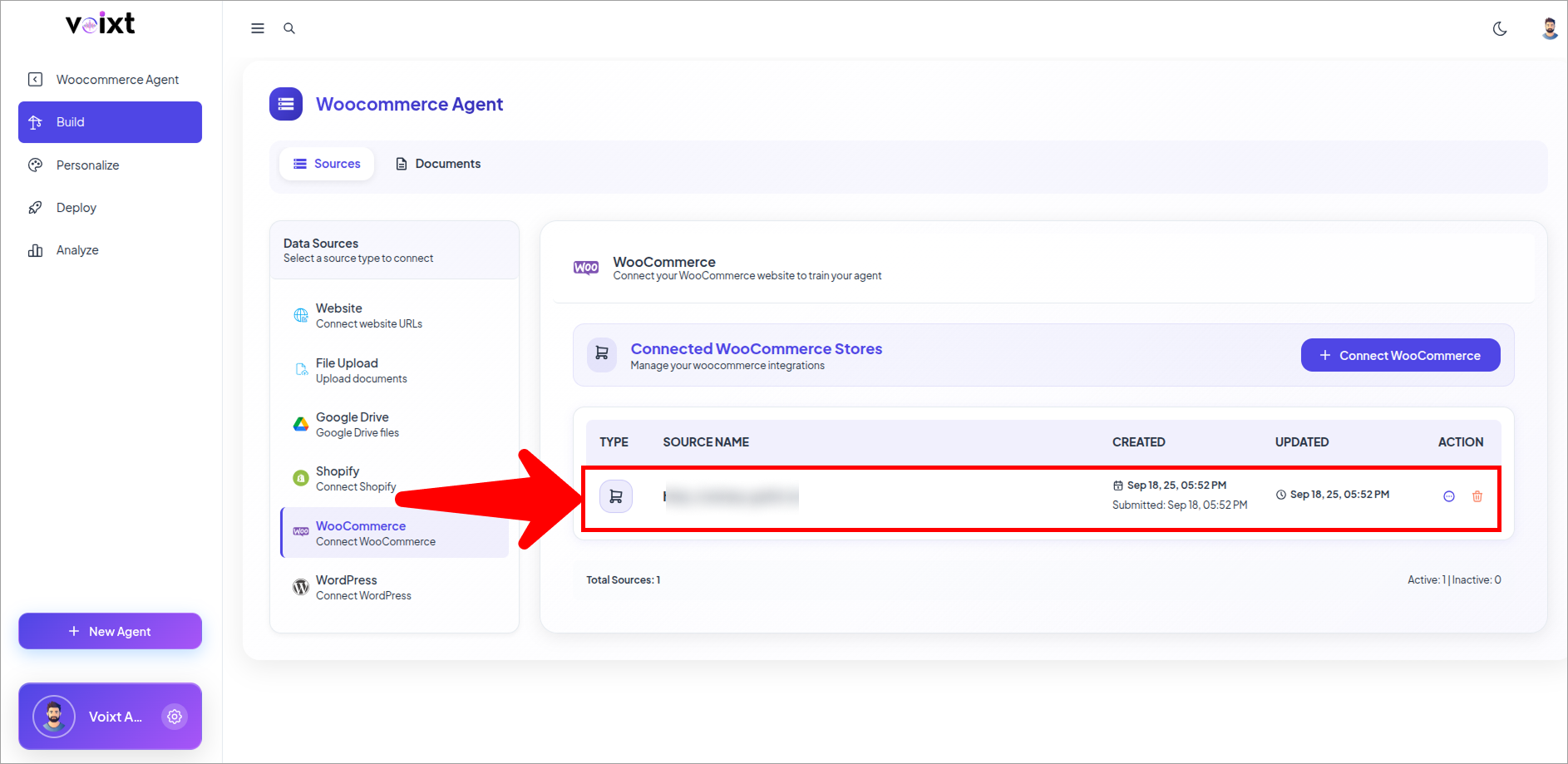
Create Woocommerce Agent in Voixt Account
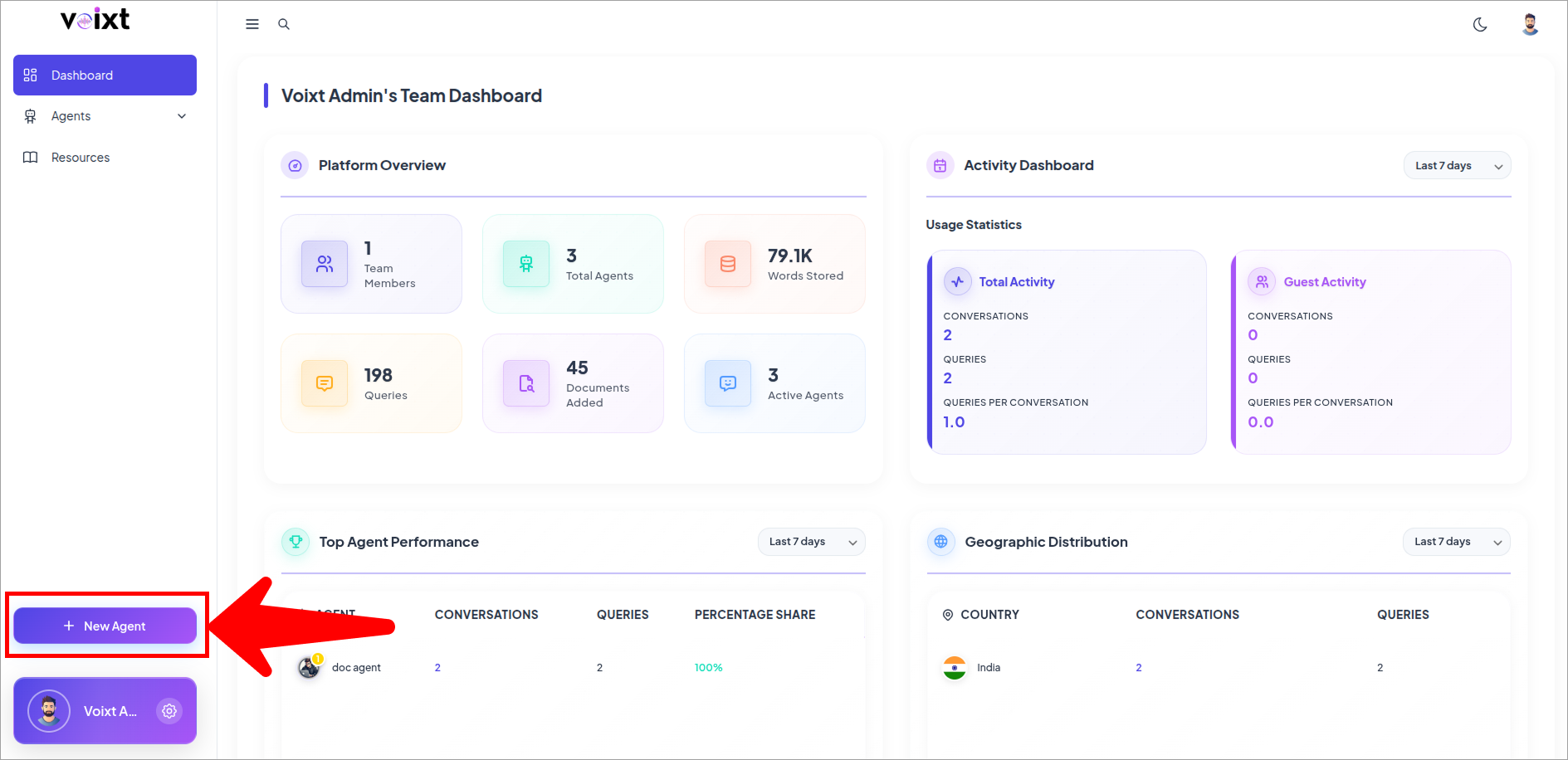
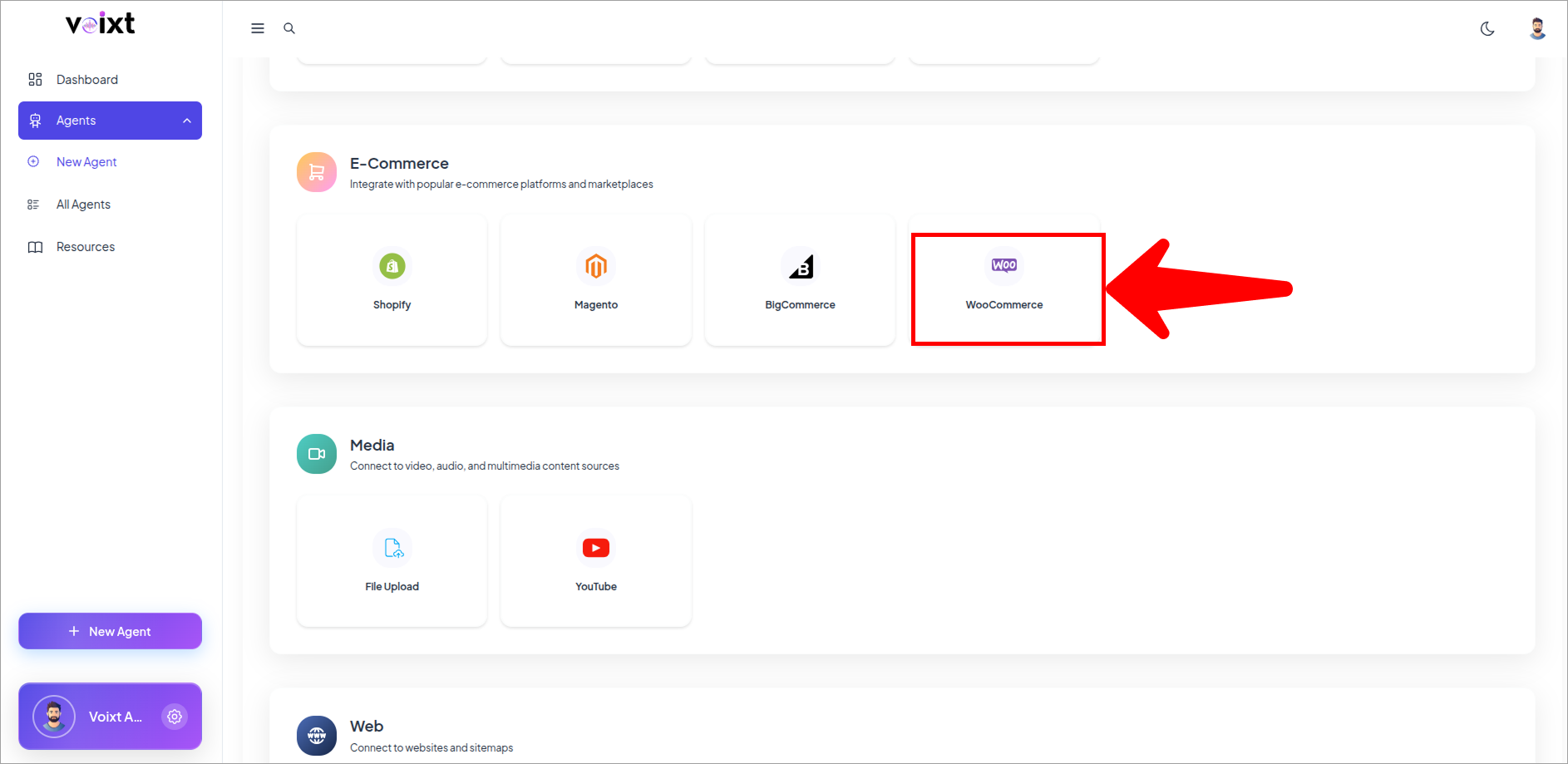
- When you Click on New Agent from Voixt App It opens below Screen there Click on woocommerce to integrate your woocommerce Store.
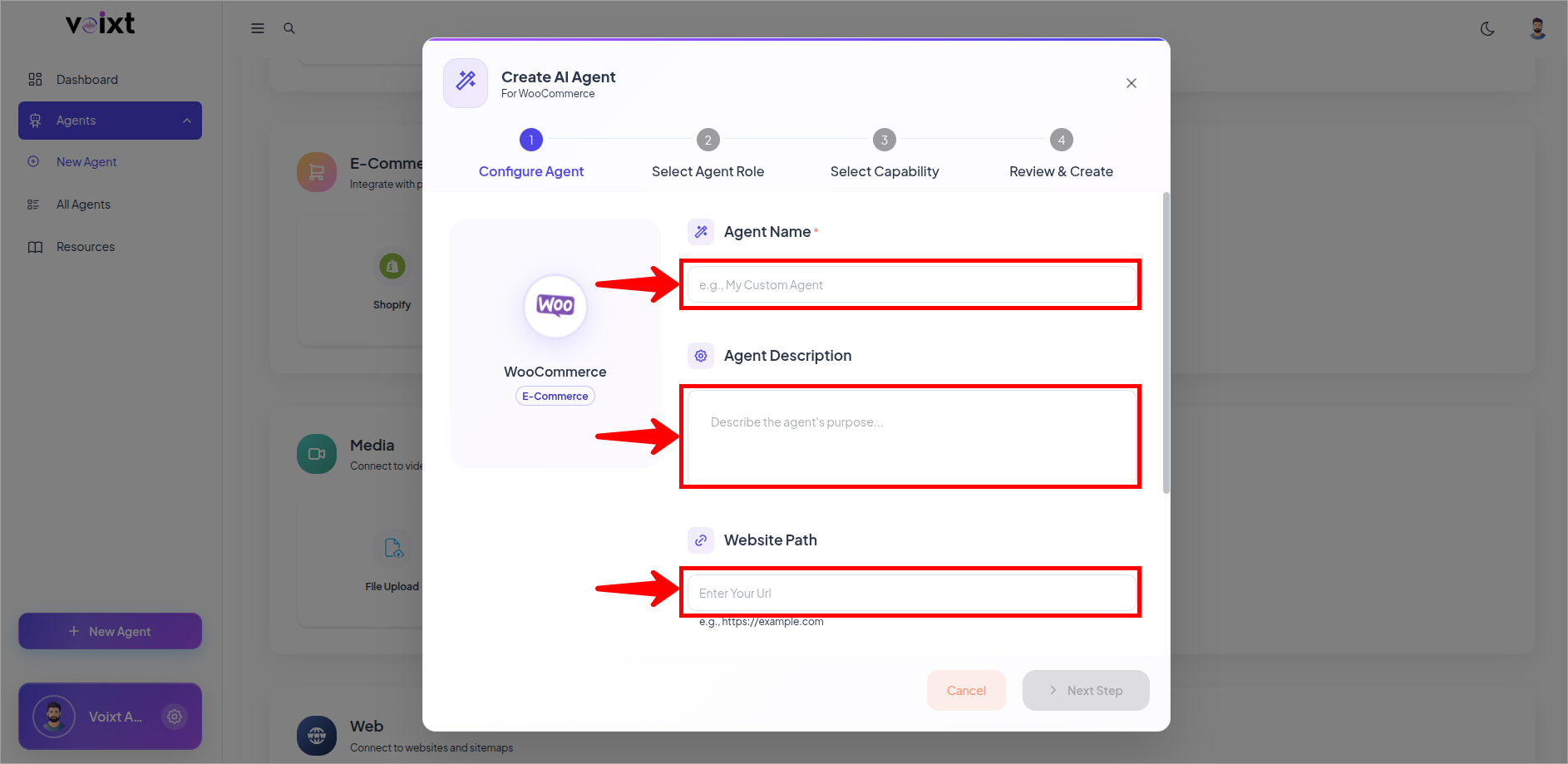
Fill all the details as you want to give like agent name, description, your website url, woocommerce username and Woocommerce Access Token paste here and click on next step.
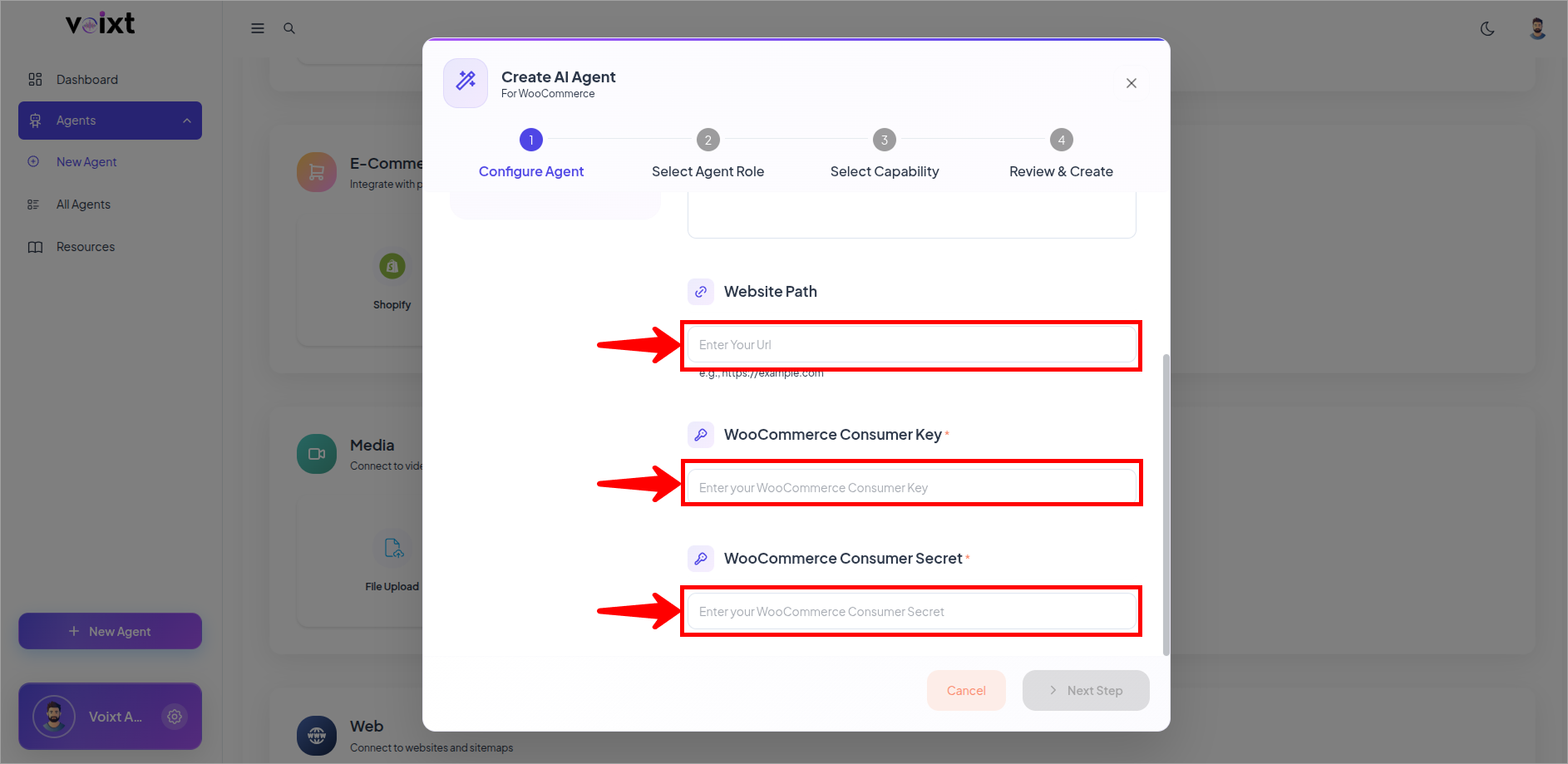
You can change all the customization details later as well Check this Agent Customization Guide
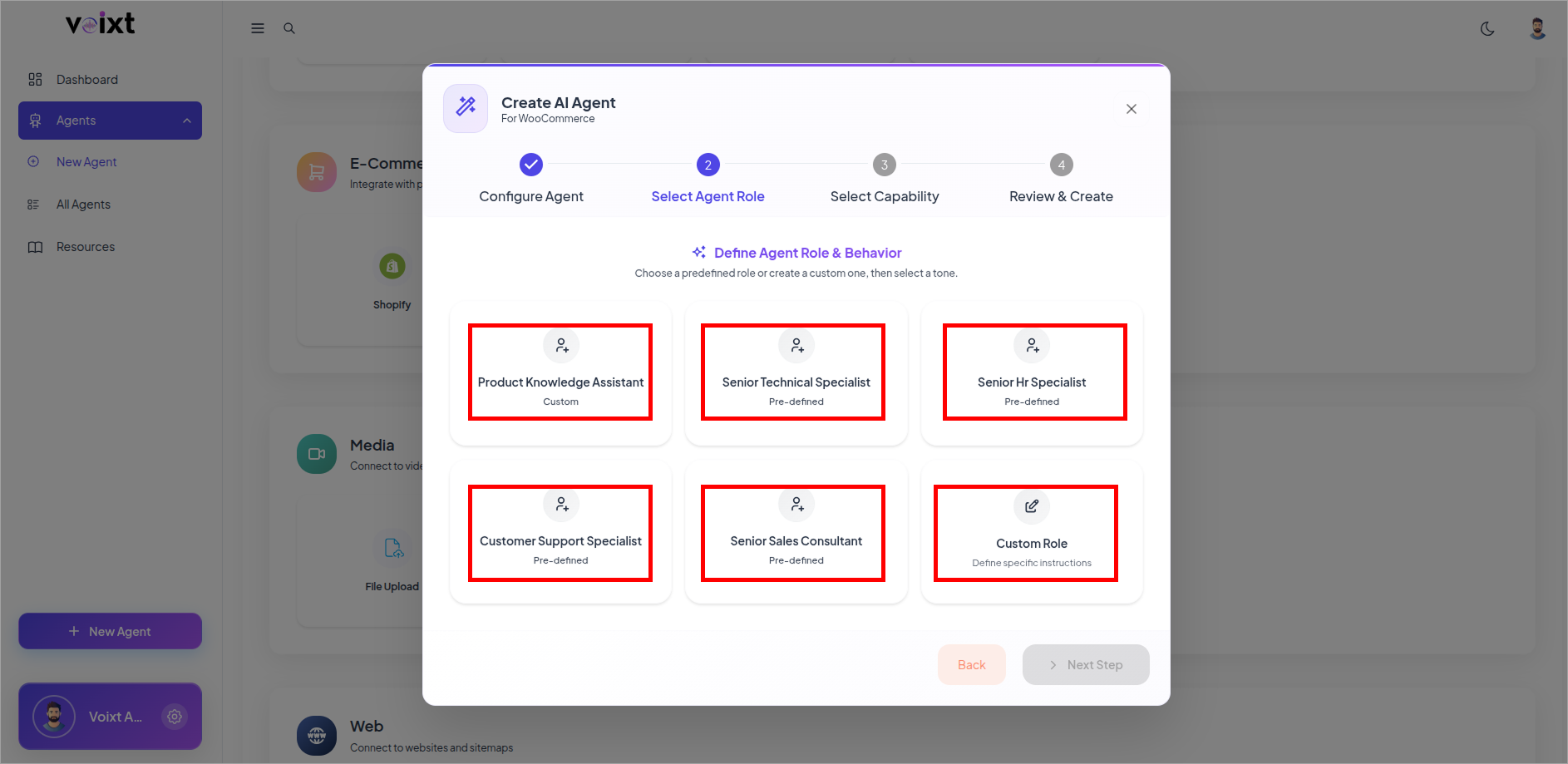
Select the Agent Specific Role.
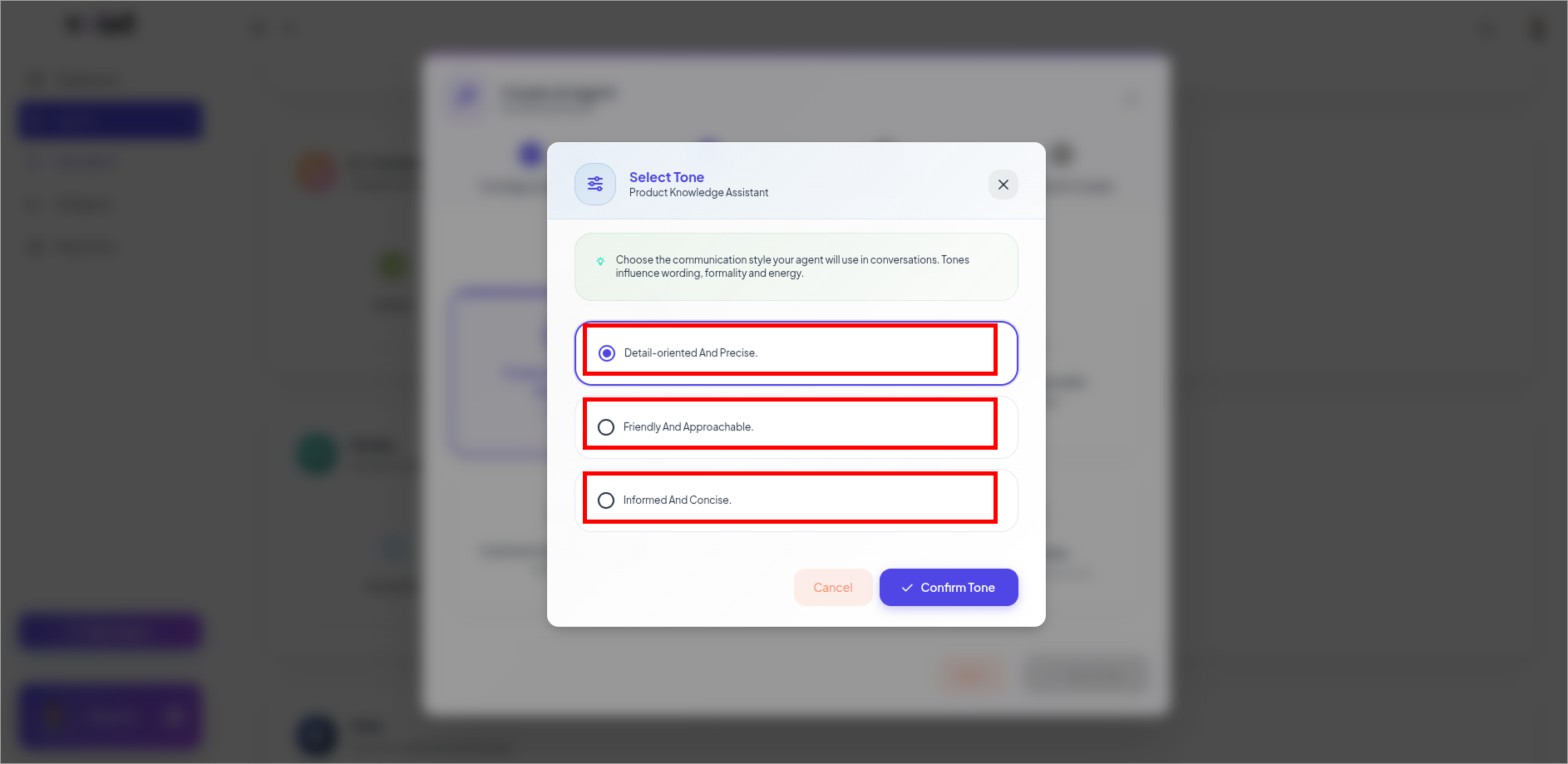
Select Tone for your Agent.
Review Role and Tone then click on next step.
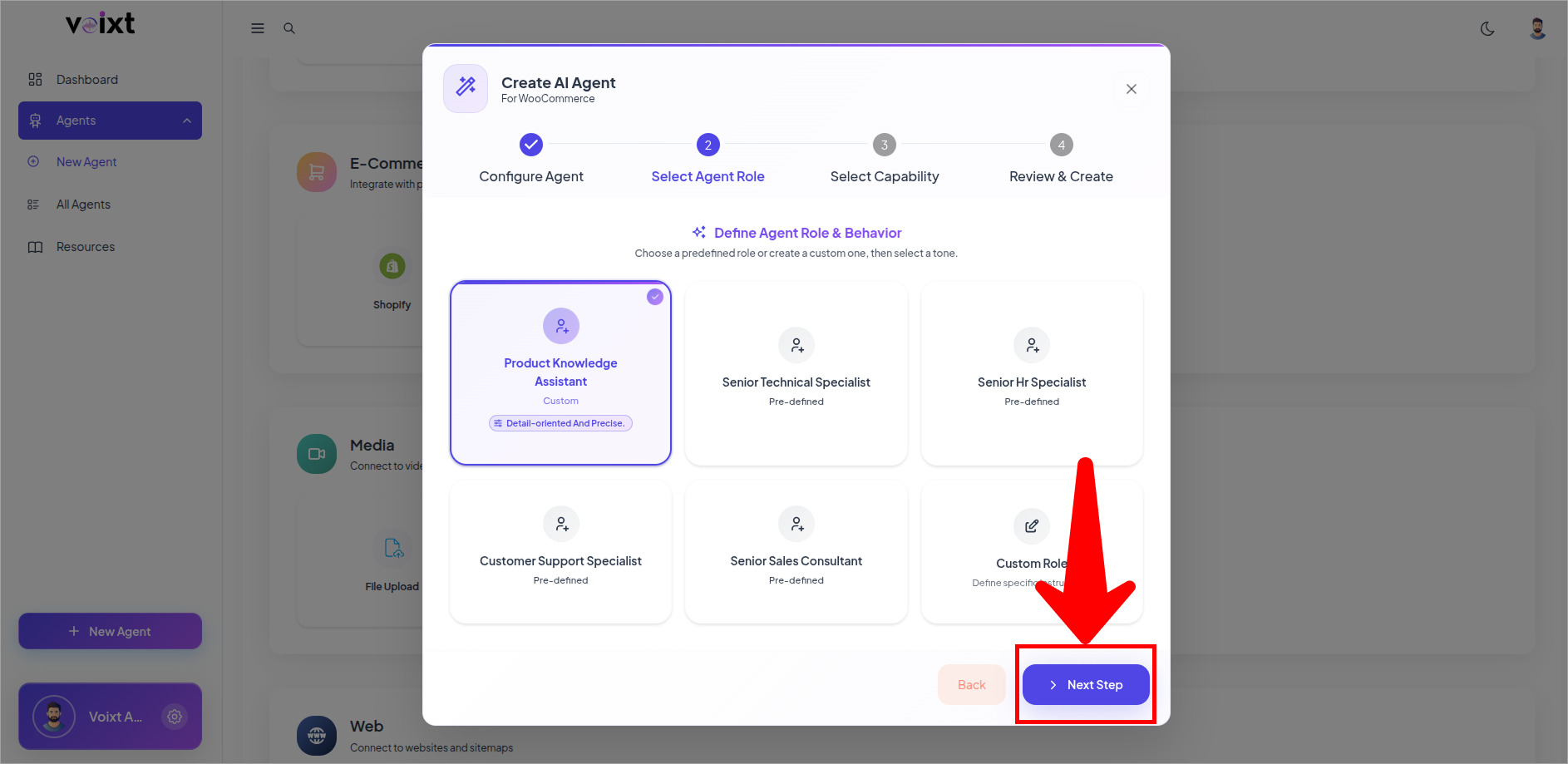
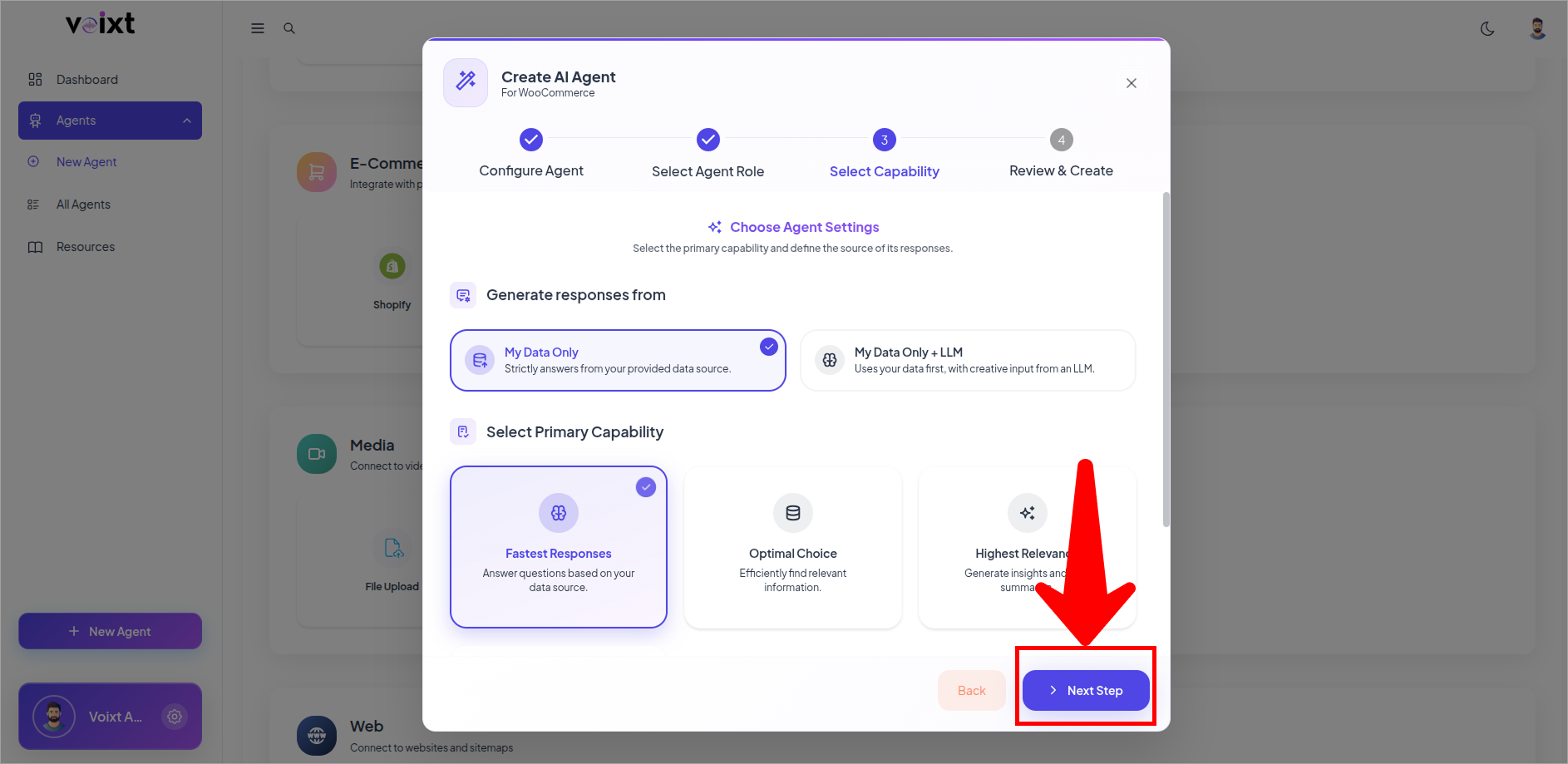
Configure Response Generated from and the Primary capability of your agent and click on next to continue.
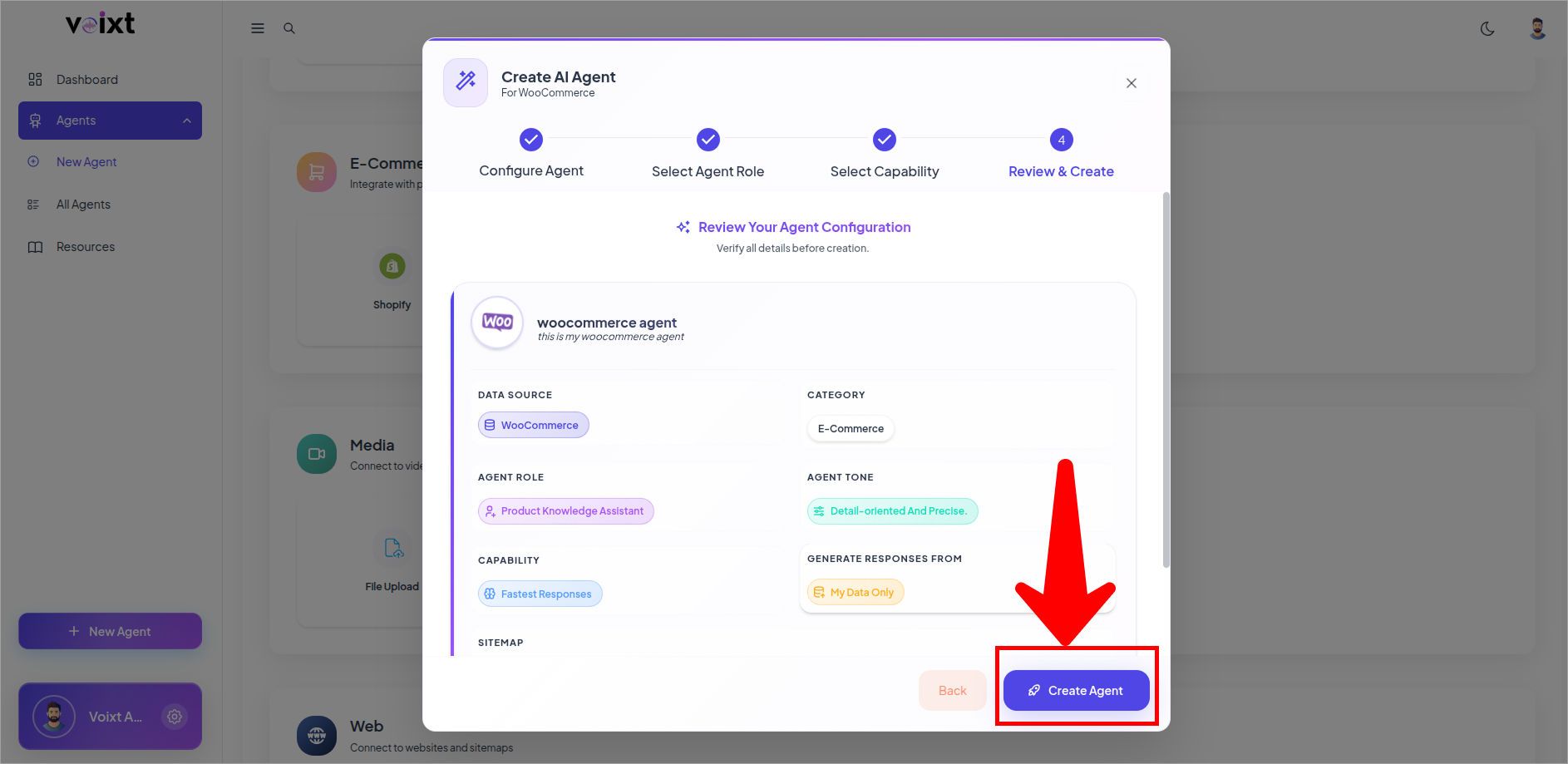
Review the details and click on Create Agent.
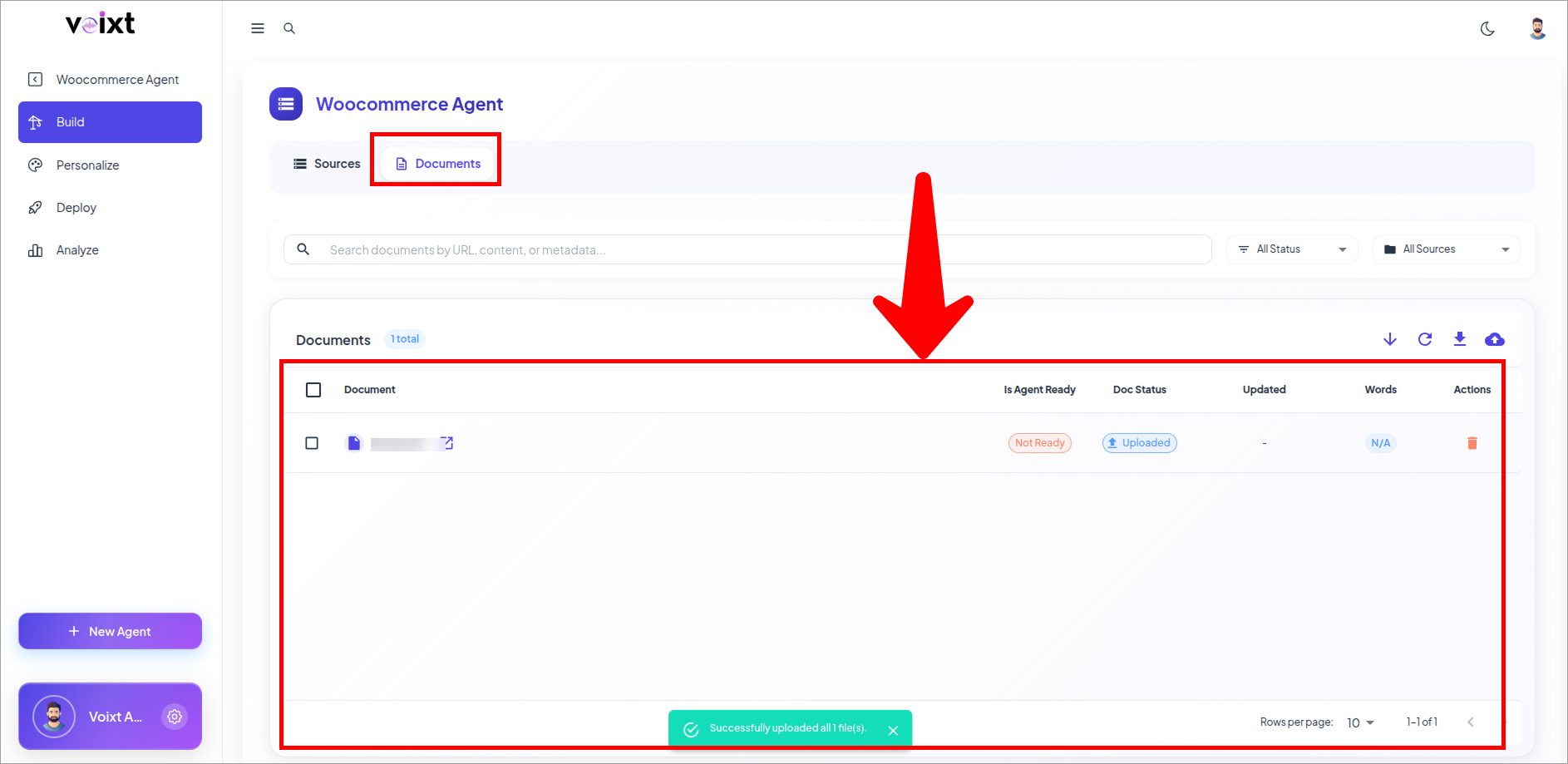
After the creating Agent you'll be redirected to the documents tab of build section, review the pages of your woocommerce site.
You can manually upload docs as well, or connect another sources as well from the source tab.
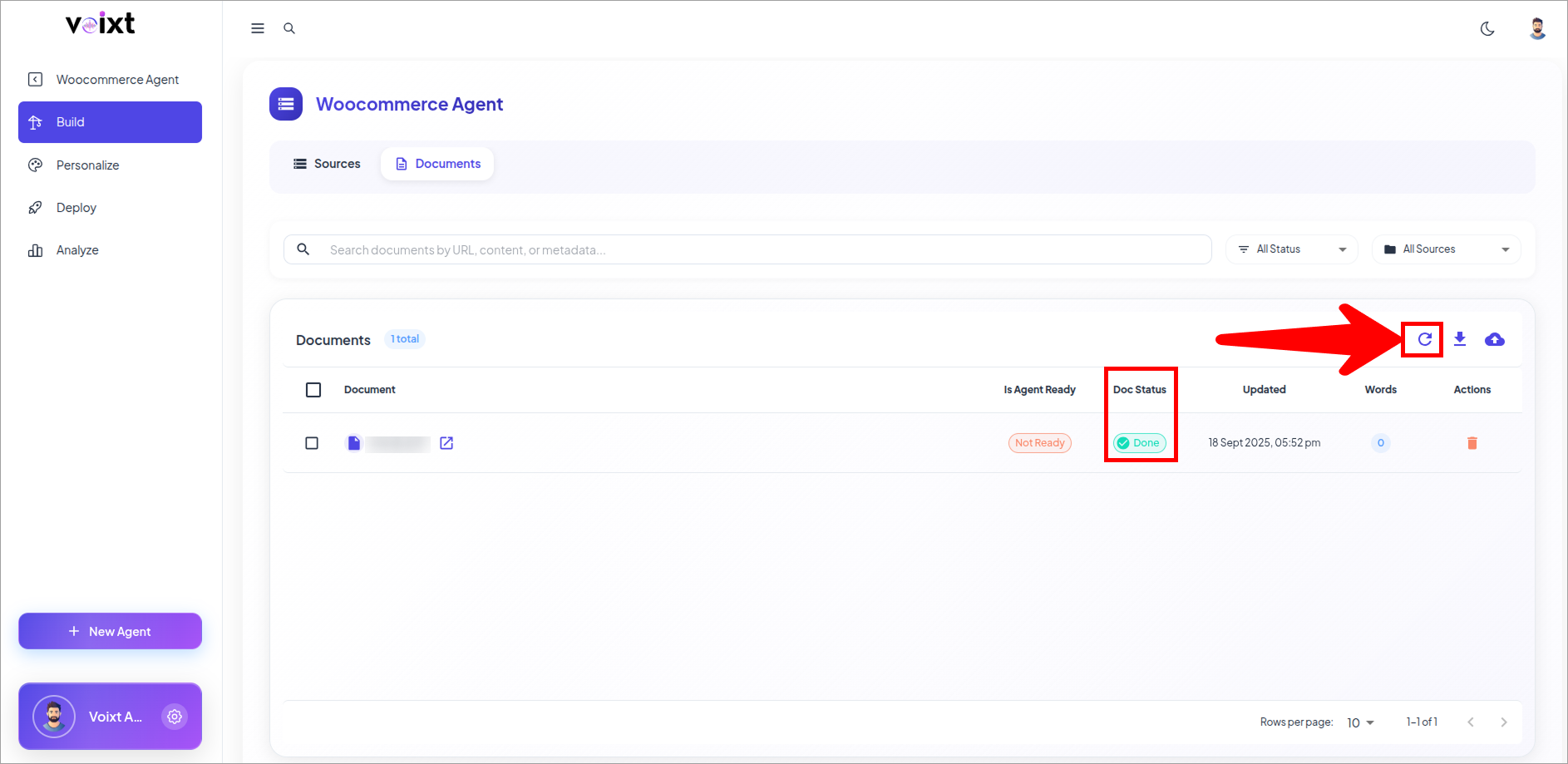
Click on refresh to check the status of your doc and also check if agent is ready for all the specific docs.
Each page takes time based on the words on the website, and after completing this process only then you can ask your agent for that resource.
You can always update, delete or add source and validate your source.