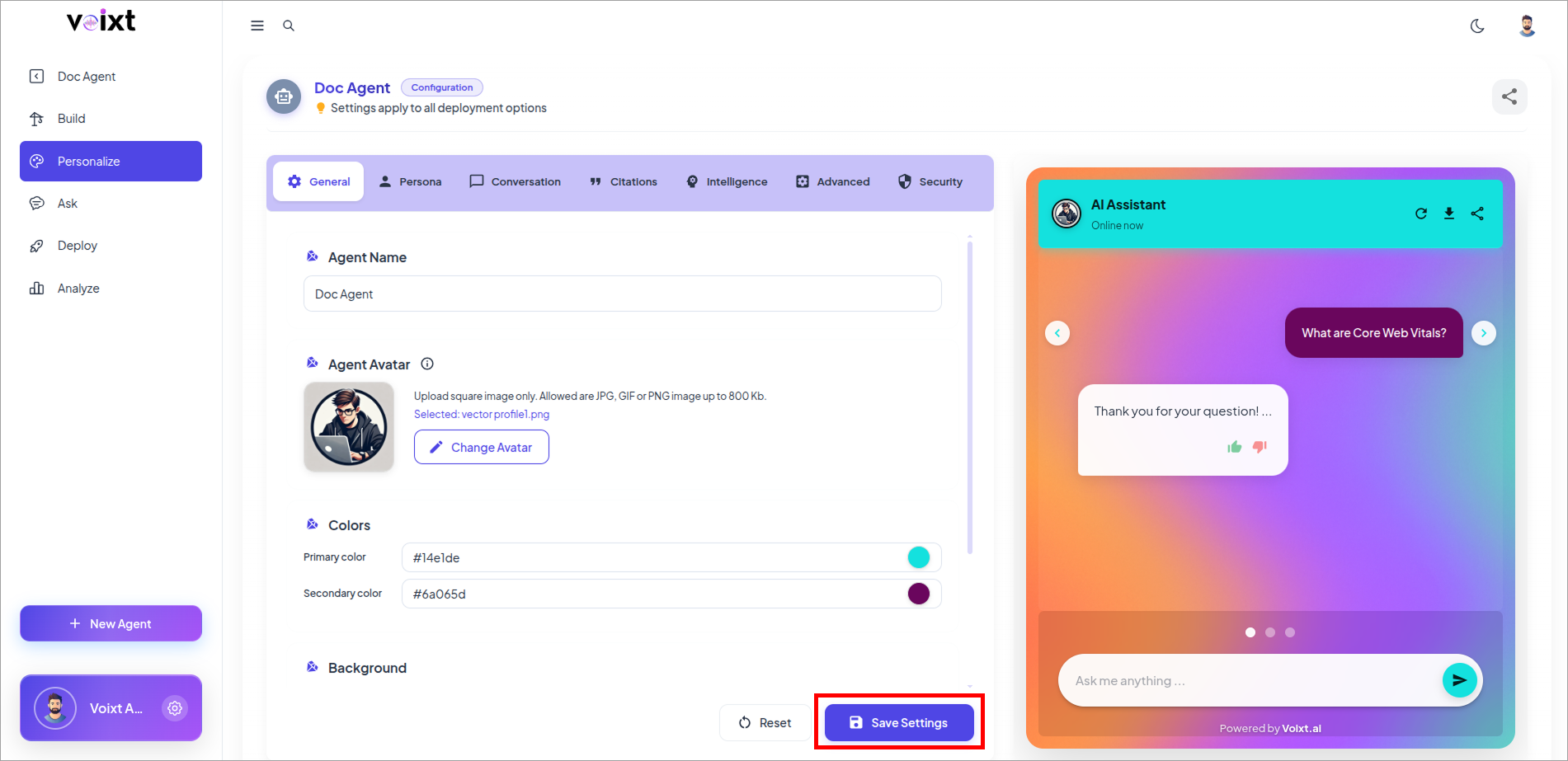
In-Chat Message Color
This Step by Step guide explains how you can customize User conversation in-chat messages color.
Secondary color
The secondary color affects several user-facing elements and helps you tailor the visual experience to match your brand. Changing the secondary color updates the following:
- User message bubble
- User avatar
- Starter question bubbles
- Send arrow (if the selected color is too light, the arrow will automatically appear in black for visibility)
Choose the Agent you want to configure in and go to Personalization.
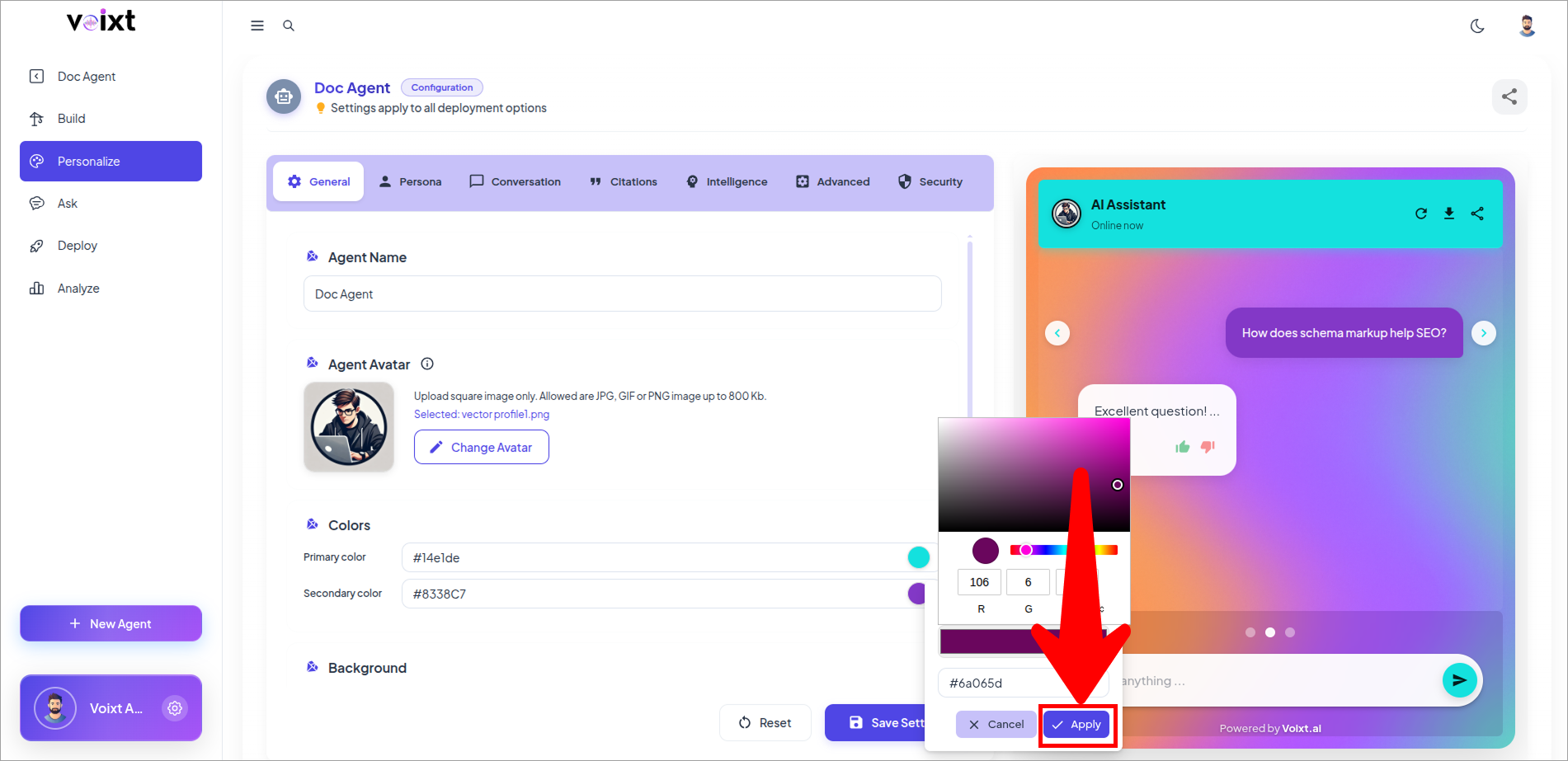
- Here, in General Tab you can see the highlighted color selection as secondary color and which also showing in the right side in the preview chat conversations.
- Click on the Colored box to change the color.
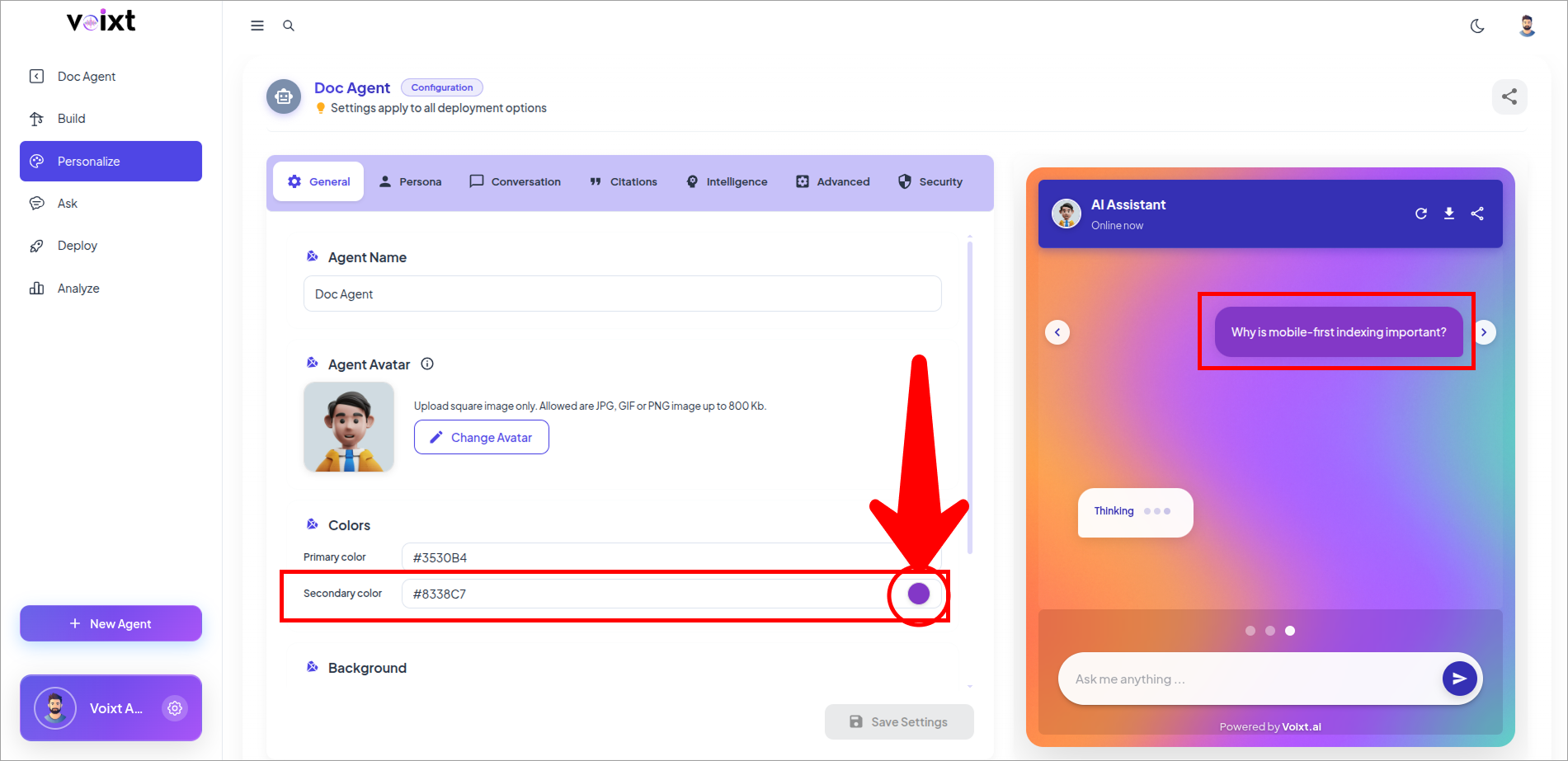
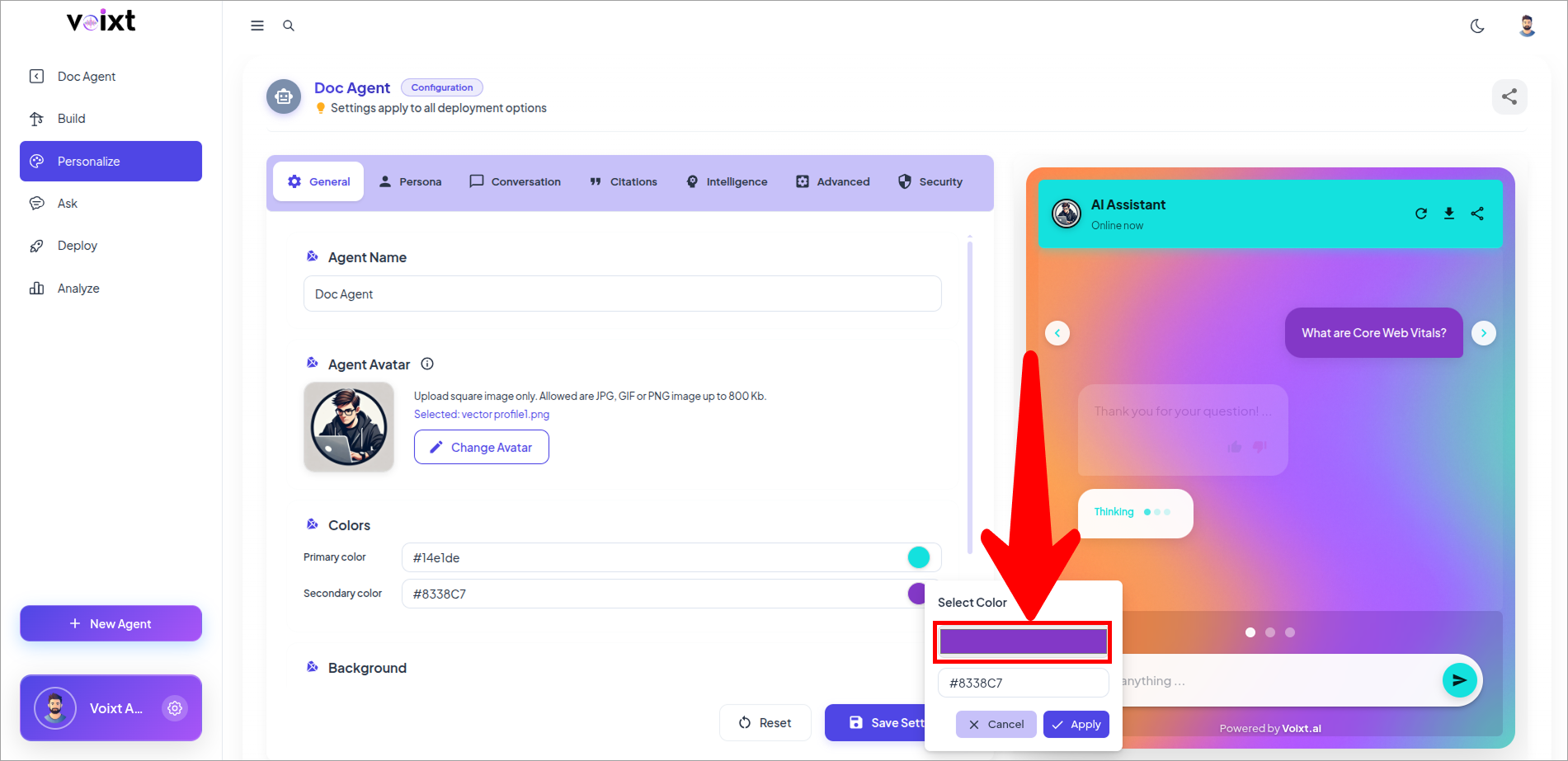
- Now, Click on the Colored box to select specific color. you can update the color by
- Hex Code
- RGB Colored indication
- Drag the position of the Color inside Colored box
- Drag pointer to change the color.
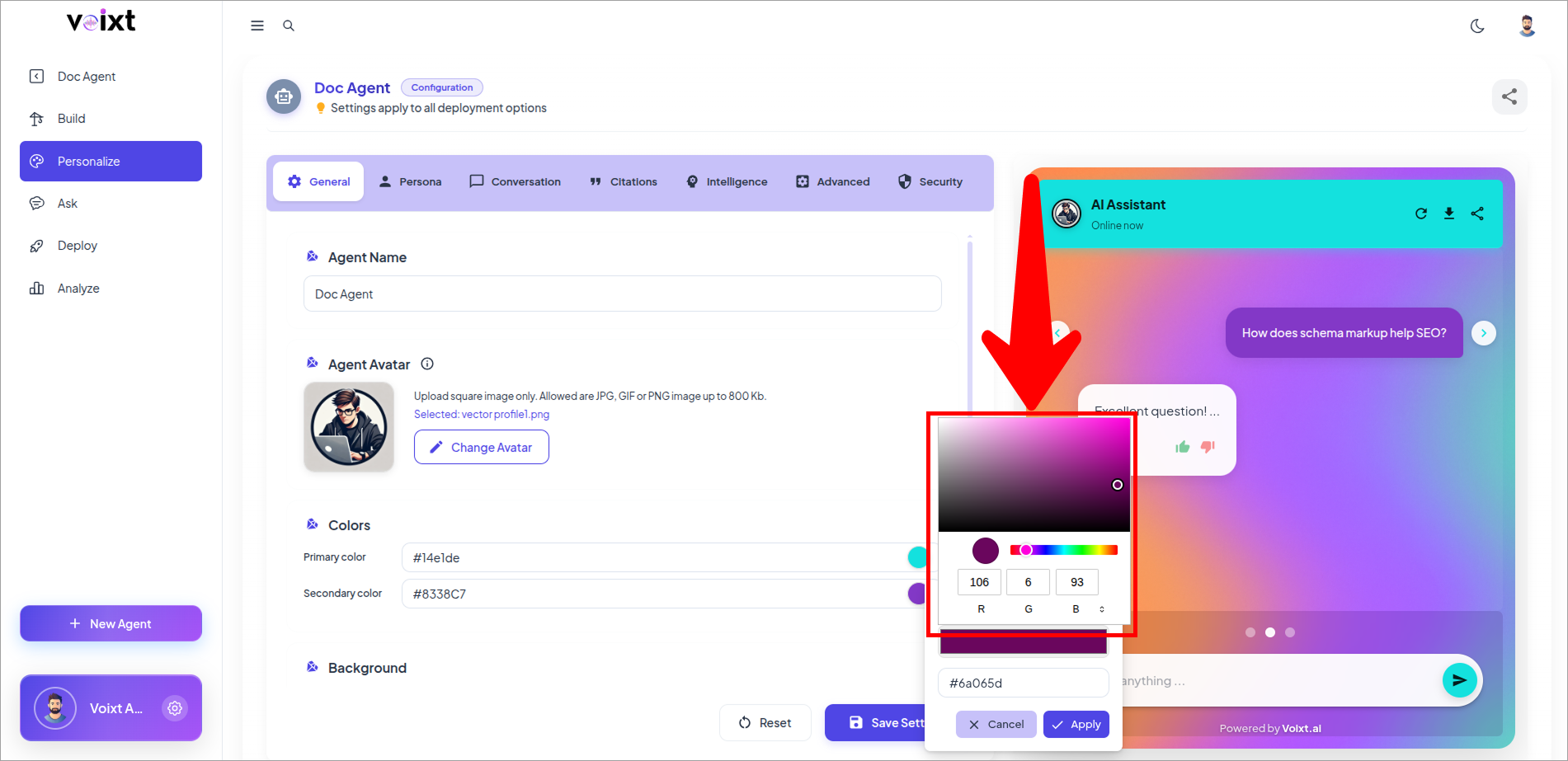
- Click on the Apply Changes to preview the update.
- Check Right Side In preview mode of the Agent chat, how the user message color looks like.
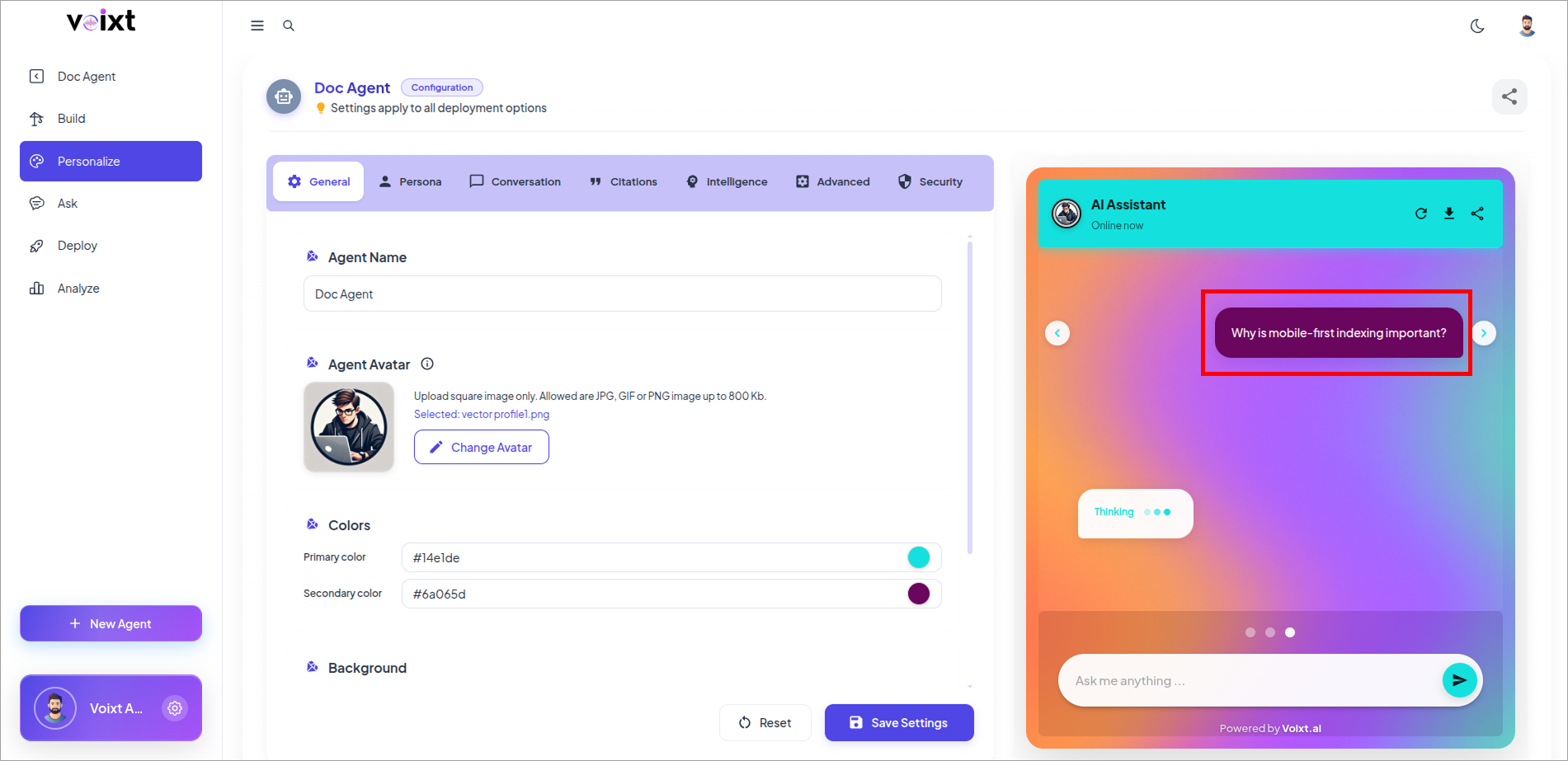
- Click on Save button to Save Changes.