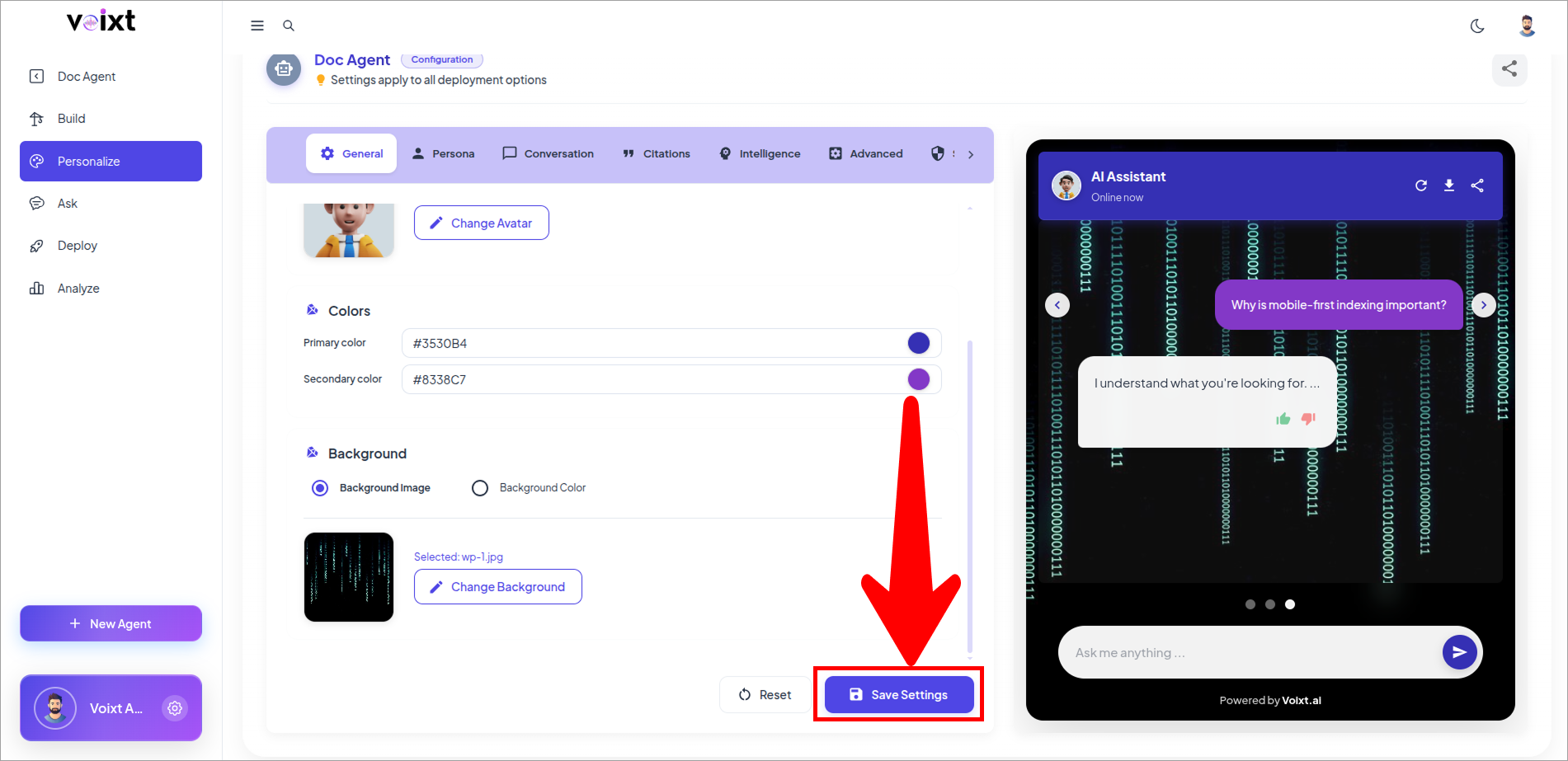
Change Background Color
This Step by Step guide explains how you can customize chat background color or you also can upload image to your background chat conversations.
Choose the Agent you want to configure in and go to Personalization.
- Go to the General Tab
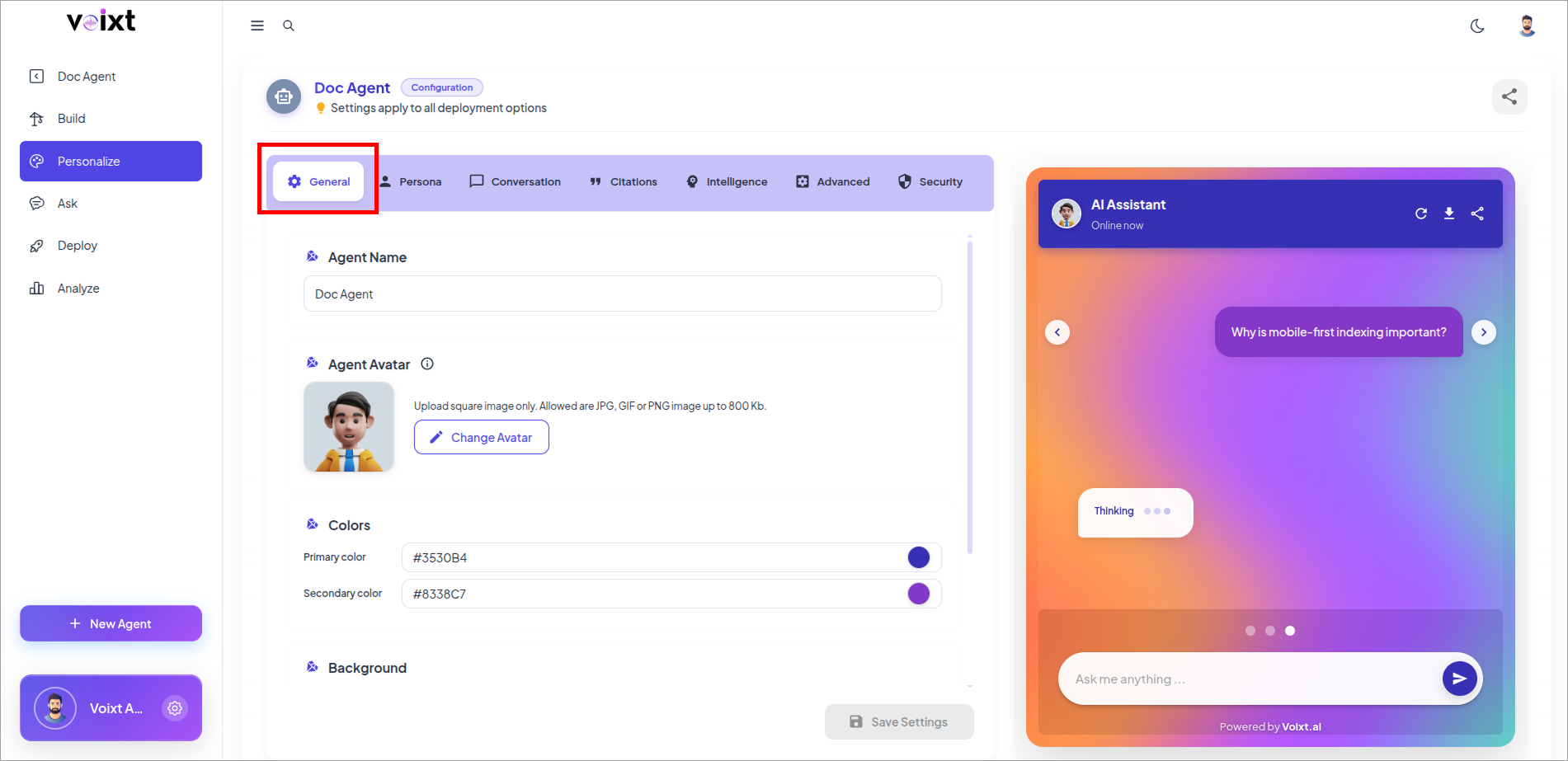
- Scroll Down and Check the Background option.
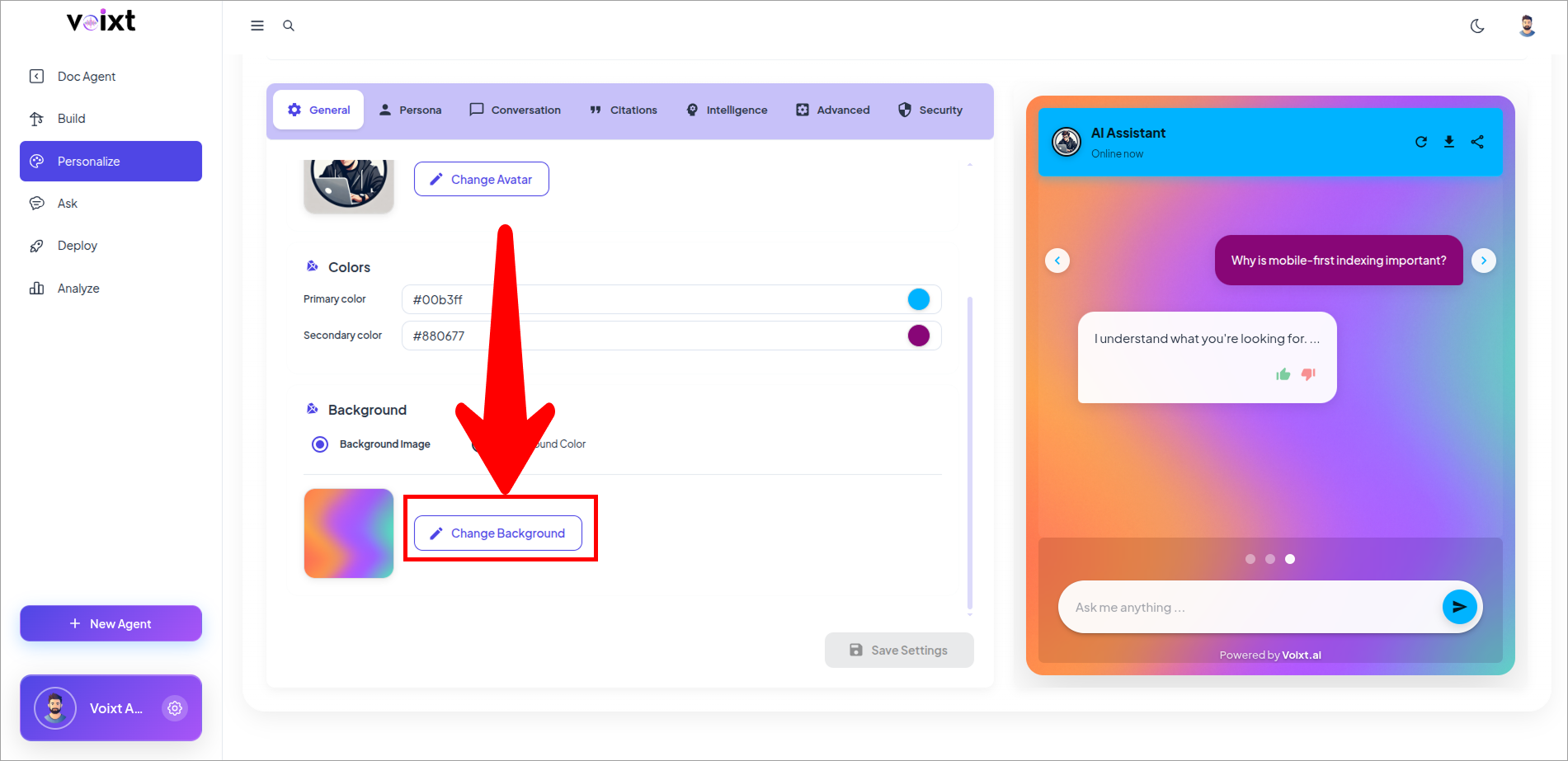
Background Color using Color Code
- Click on Background Color Tab.
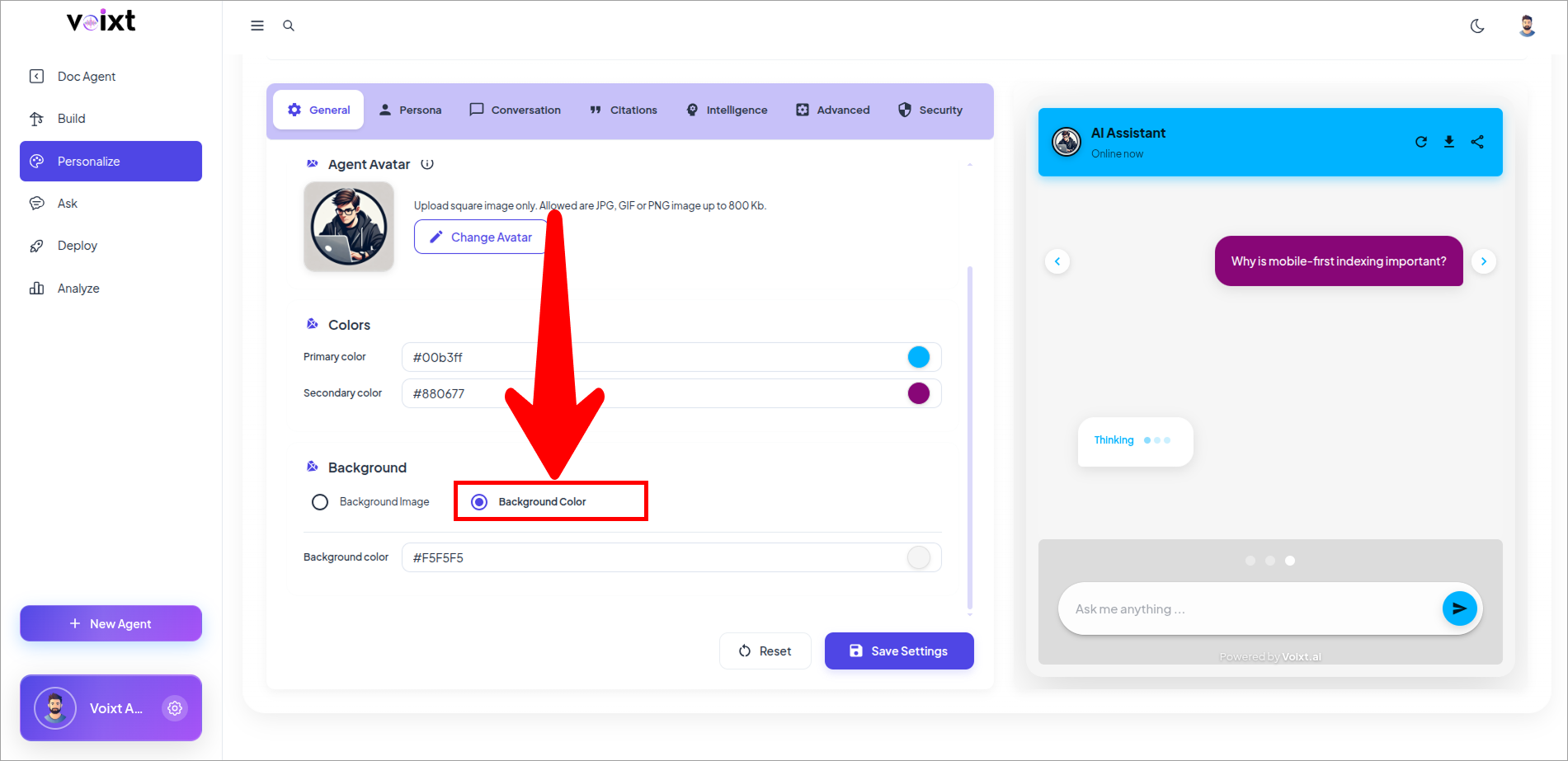
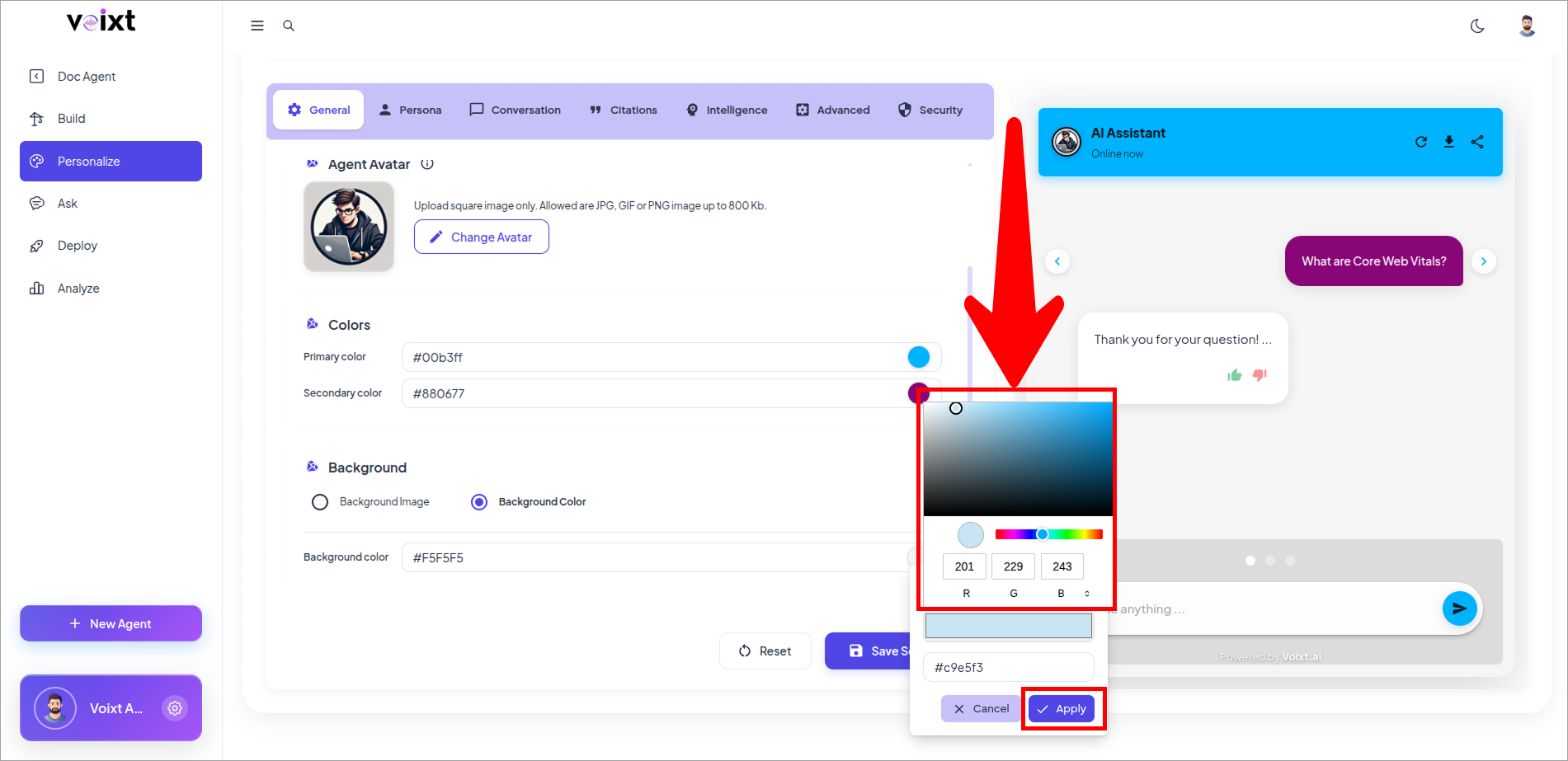
- Click on Color box to Update the Color as per wants. We can update the color using
- Hex Color Code
- RGB Update
- Drag the position of the Colors
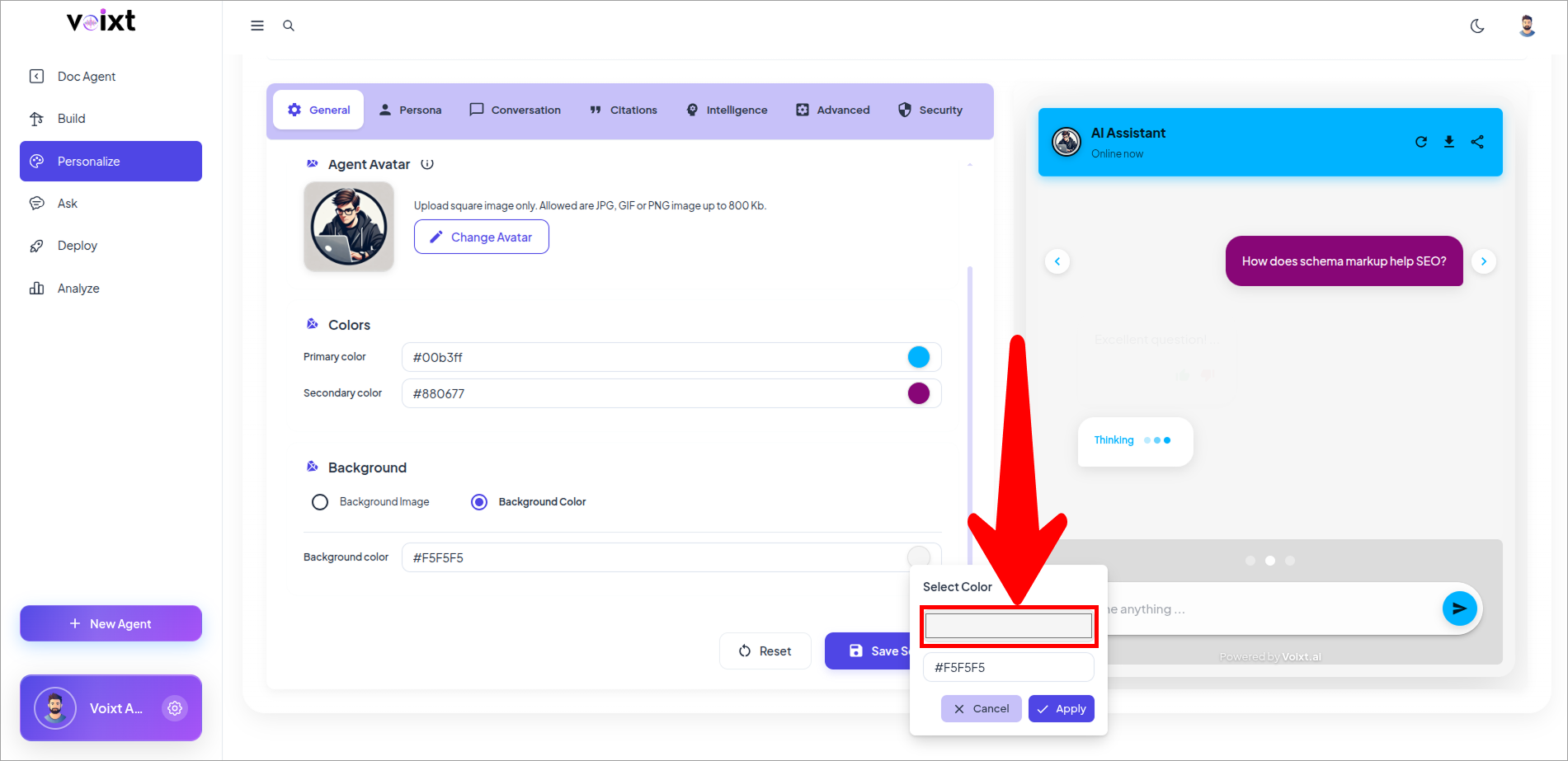
- Drag to change value of color.
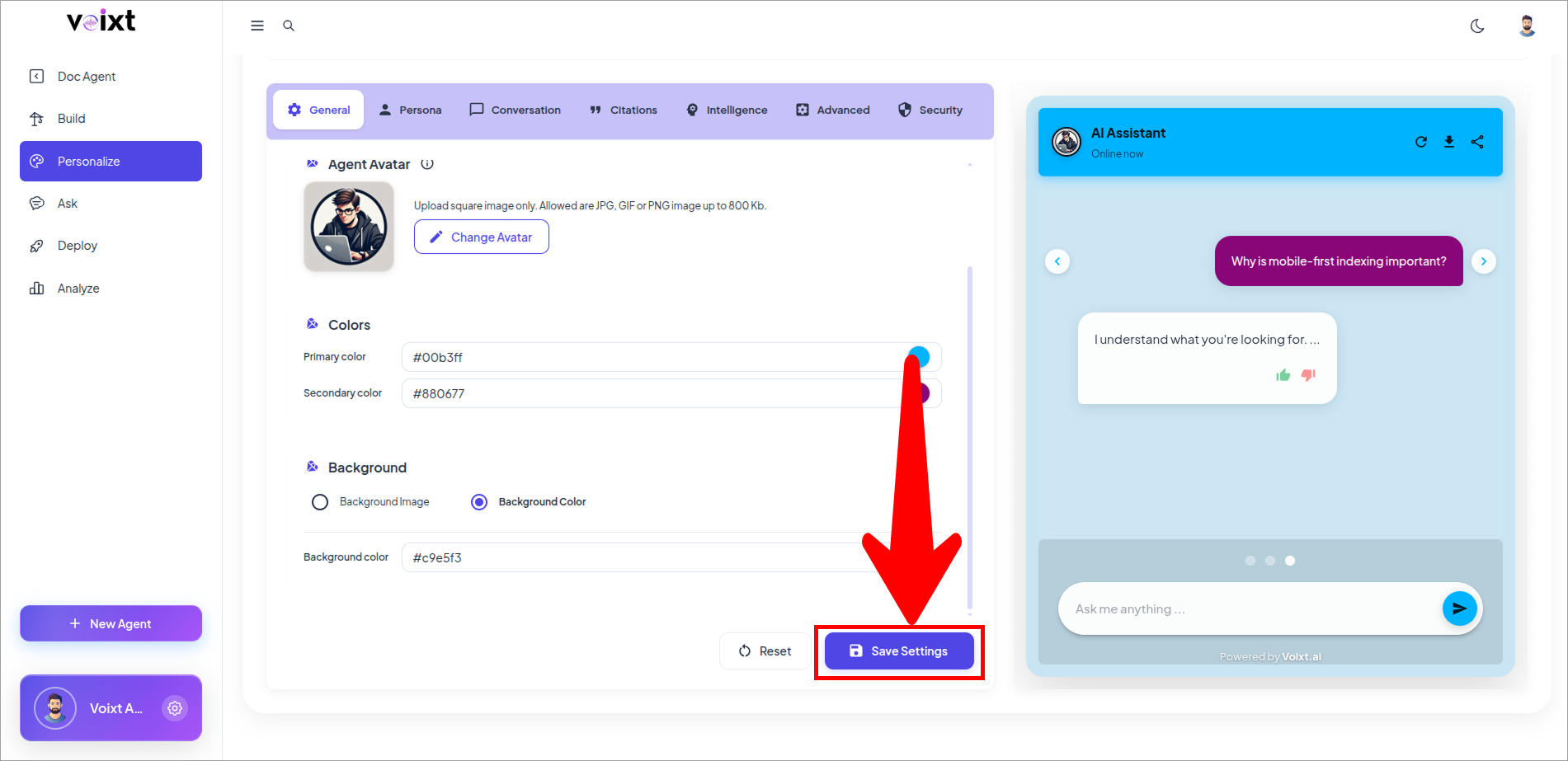
- Click on Save Changes to see the Changes in chat.
Background Image
- Click on the Background Image to Change the image of the background as the image.
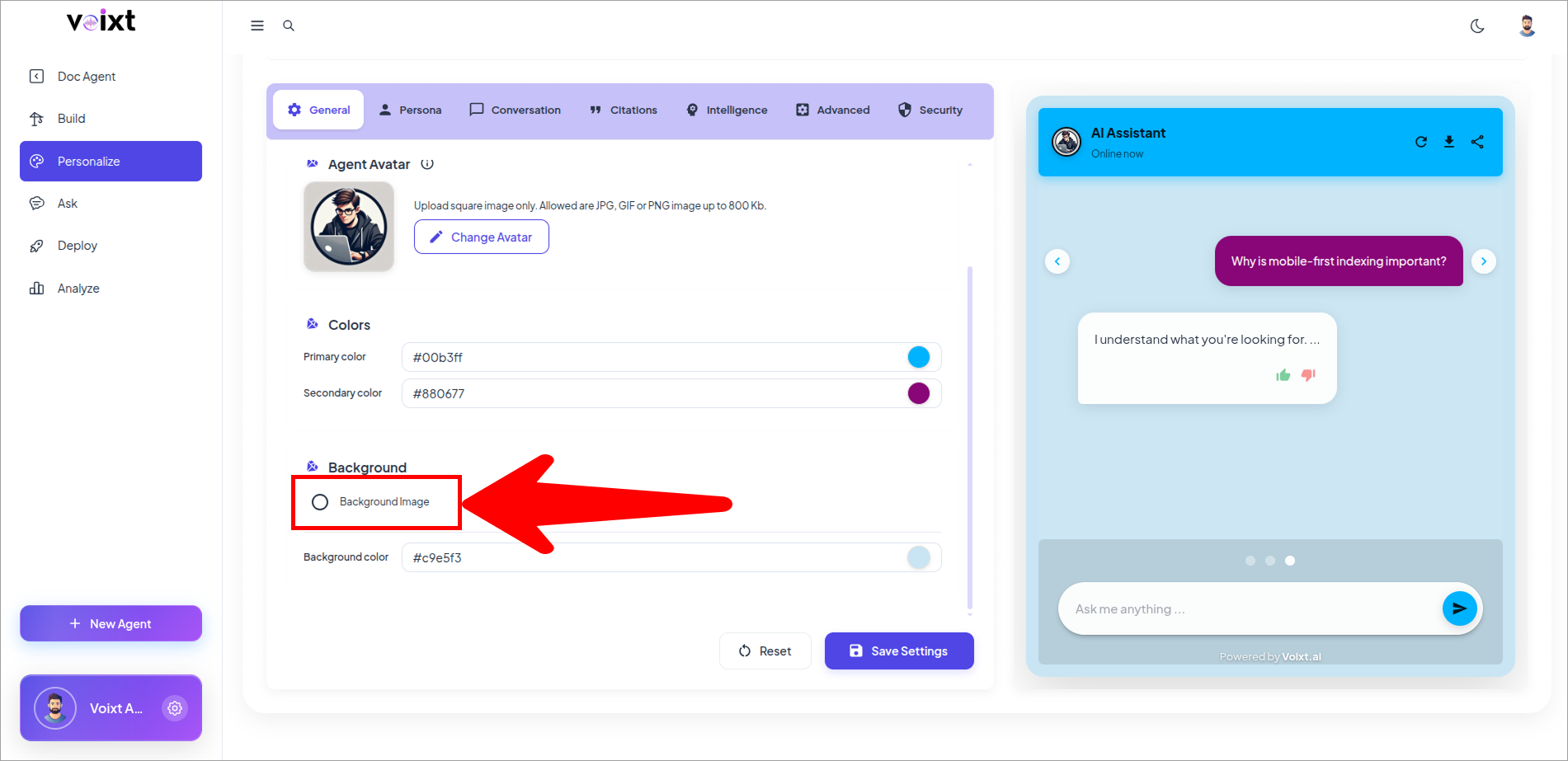
- Click on the Change Background and upload image you want to give to your agent.
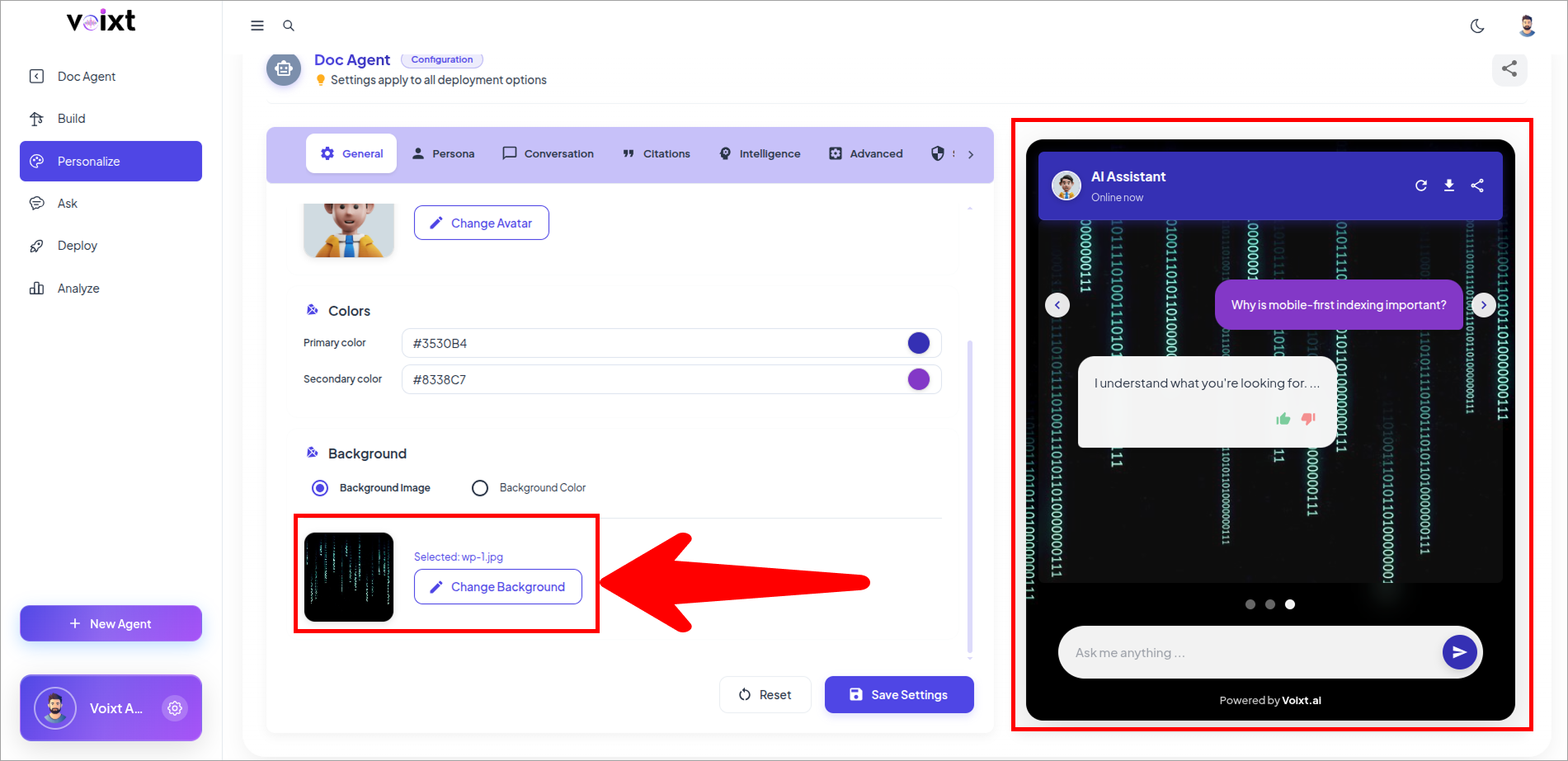
- You can check the preview right side to see how it looks like, Click on Save button to Save Changes.