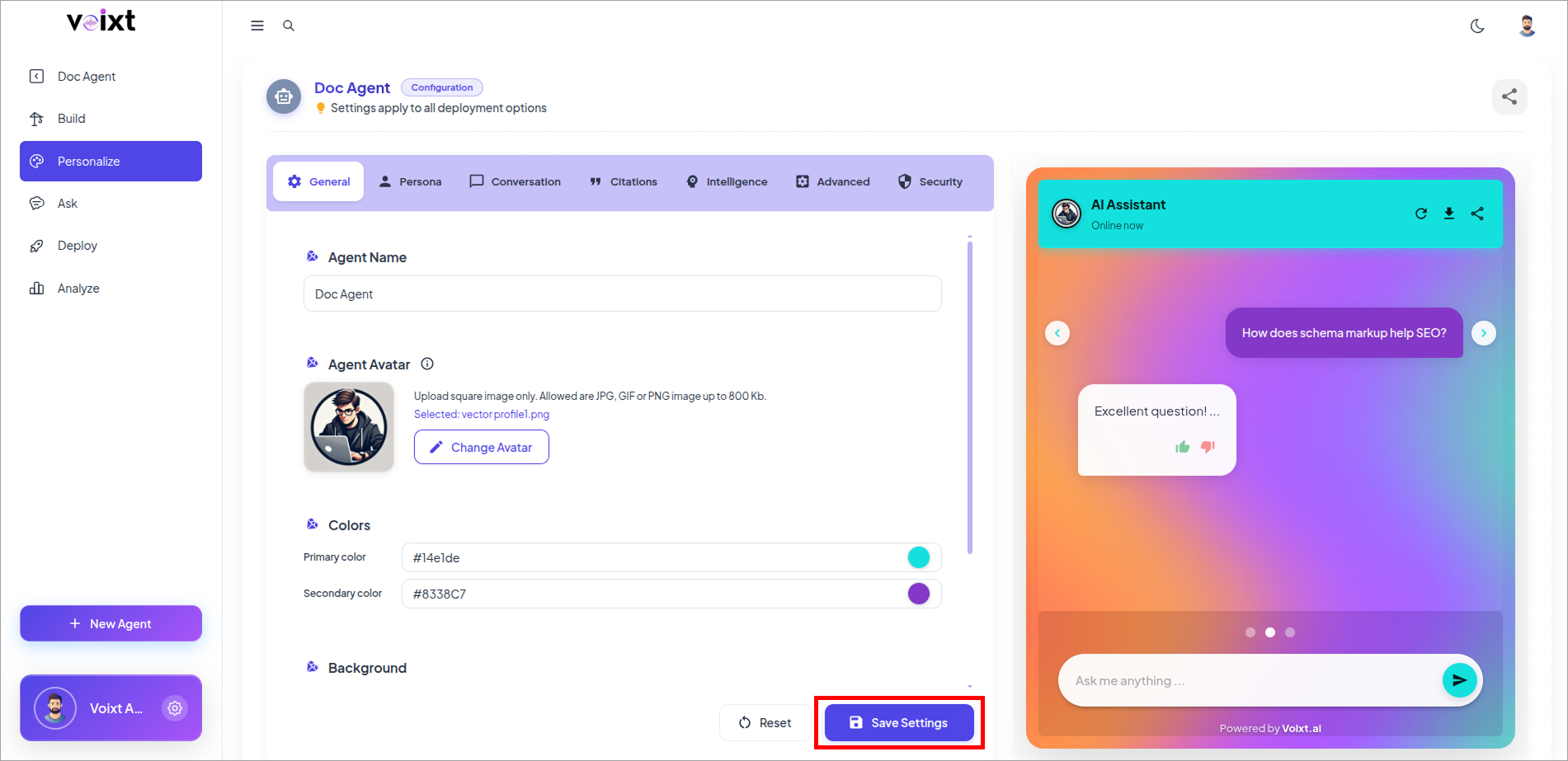
Agent Header Color
This Step by Step guide explains how you can customize your Agent Header or toolbar Color and give color to your brand.
Primary color
The primary color controls several visual elements in the chat interface, including:
- The toolbar at the top of the chat
- The details inside starter questions
- The thinking dots shown while your AI agent is generating a response
From All Agents Go to Personalization.
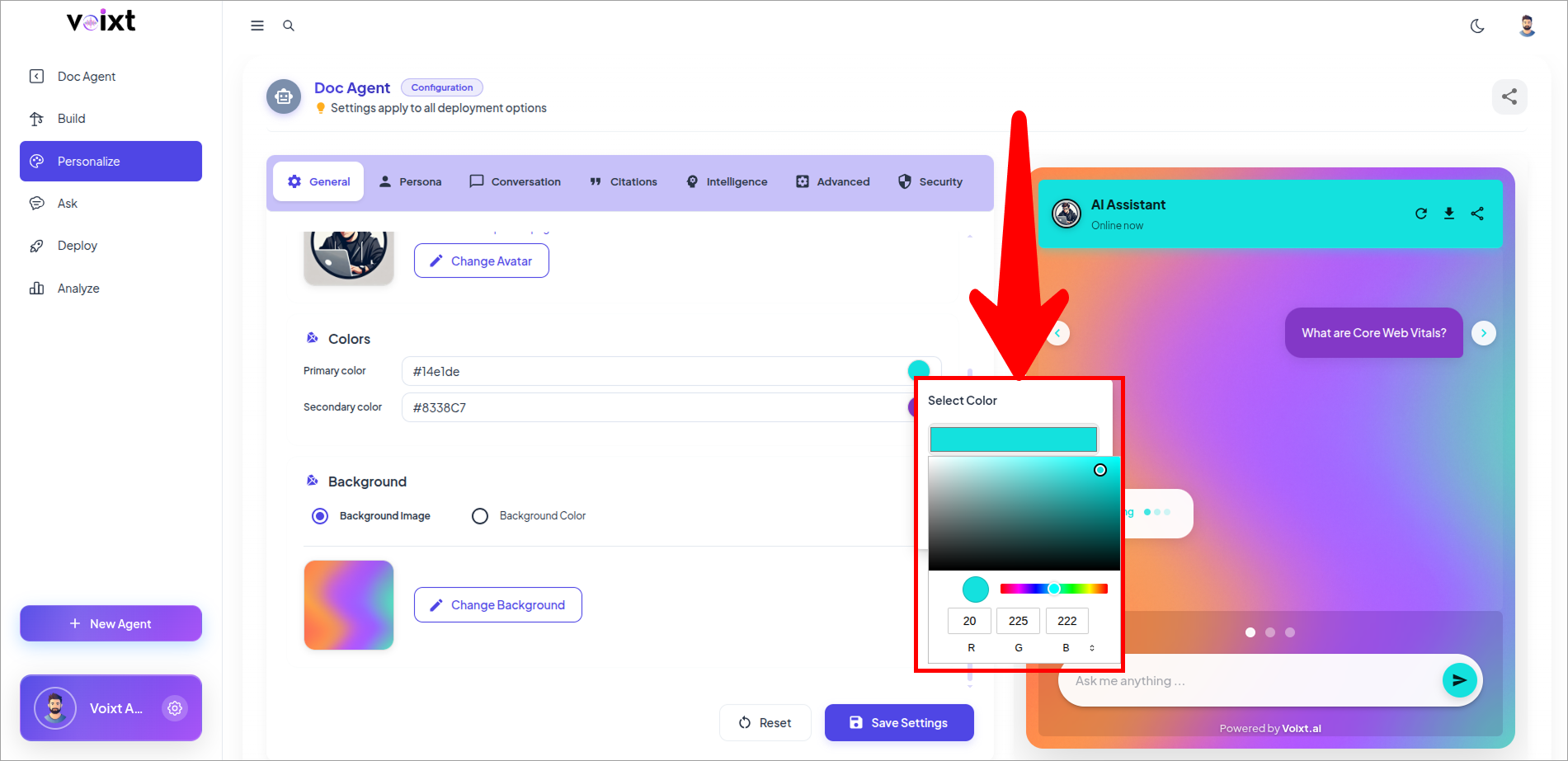
- Here, in General Tab you can see the highlighted color selection palette primary color and which also showing in the right side in preview chat conversations.
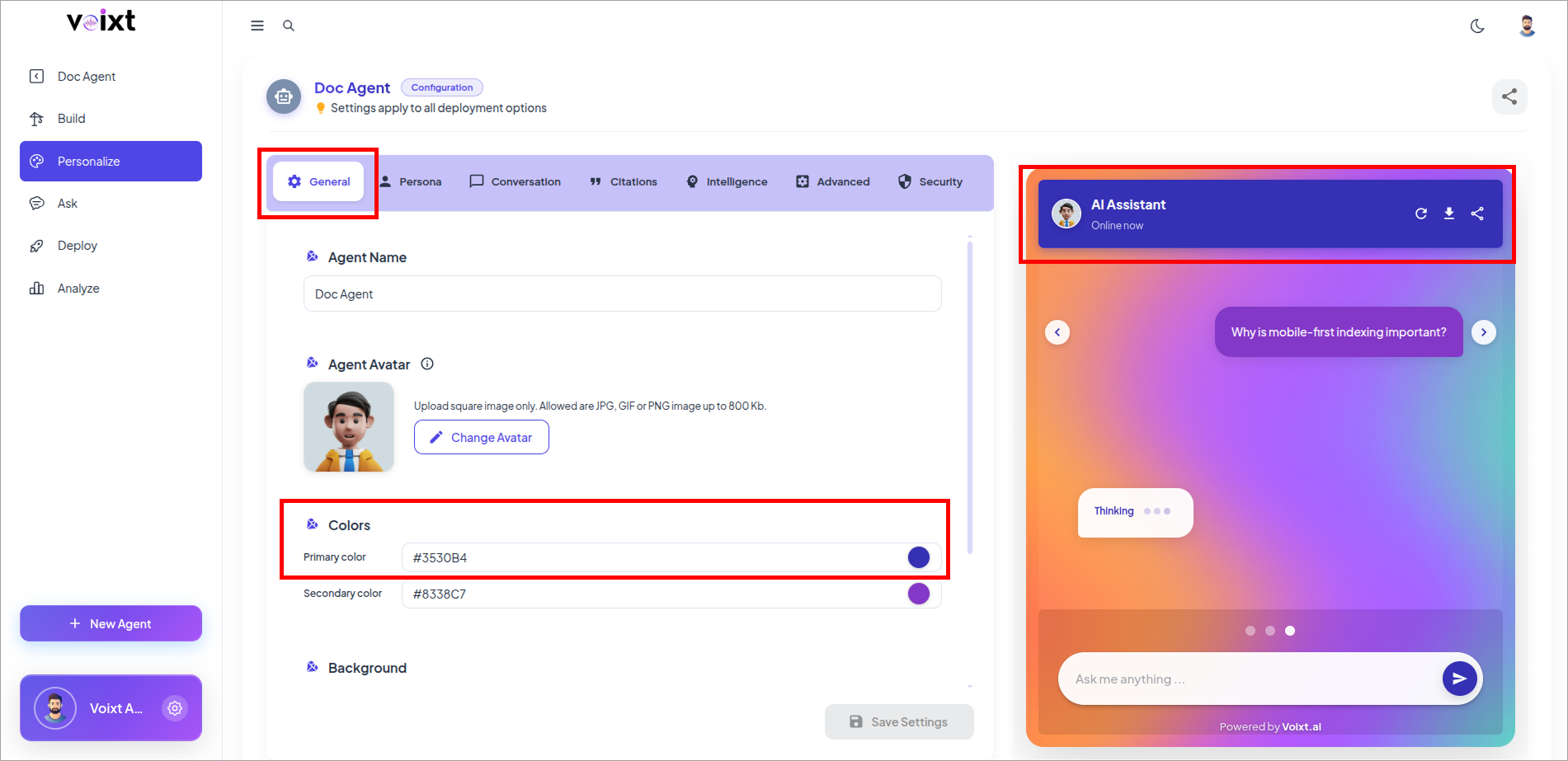
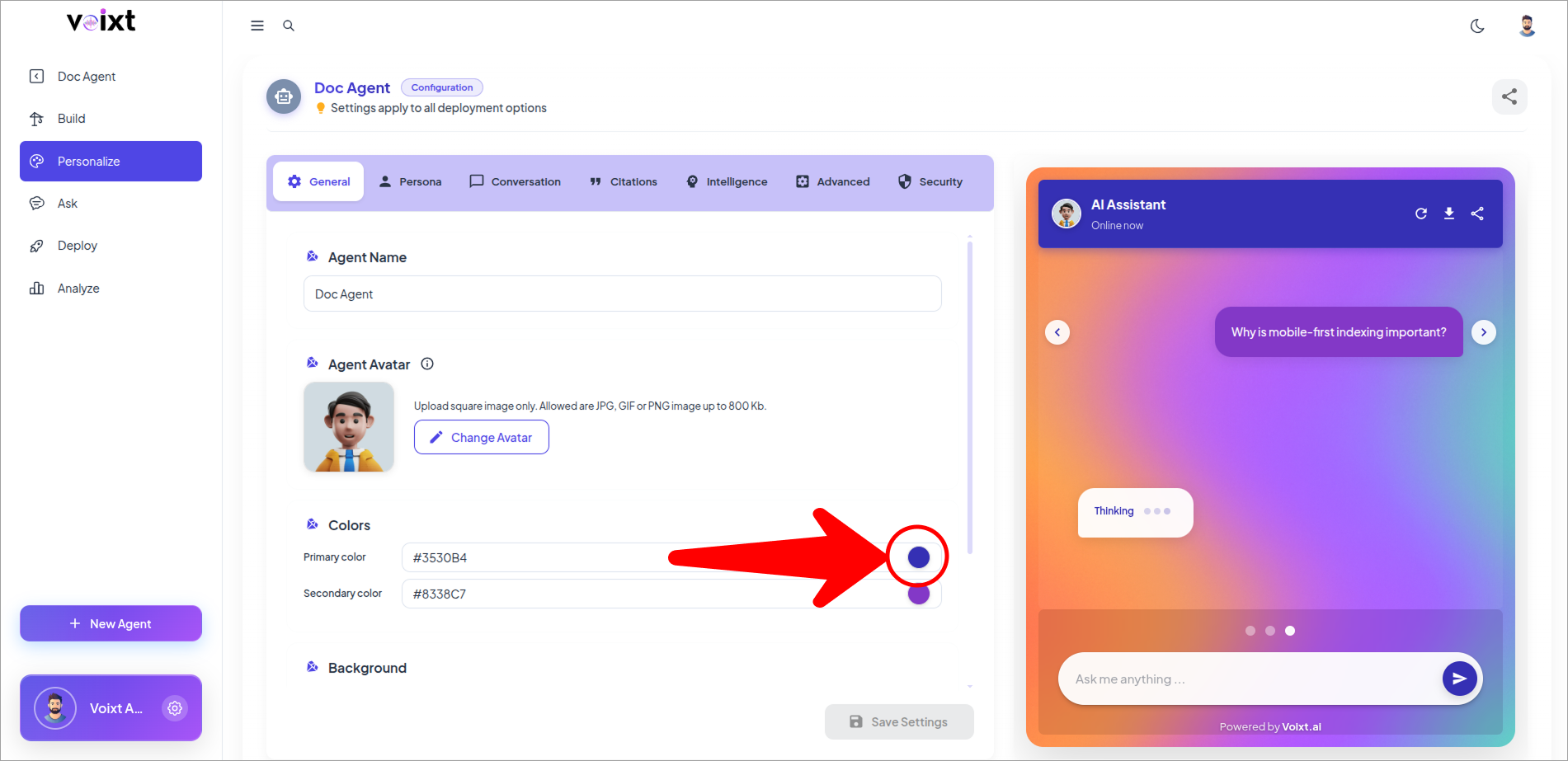
- Click on the Color indicating position.
- Click to Select Color to update you can also enter enter hex code.
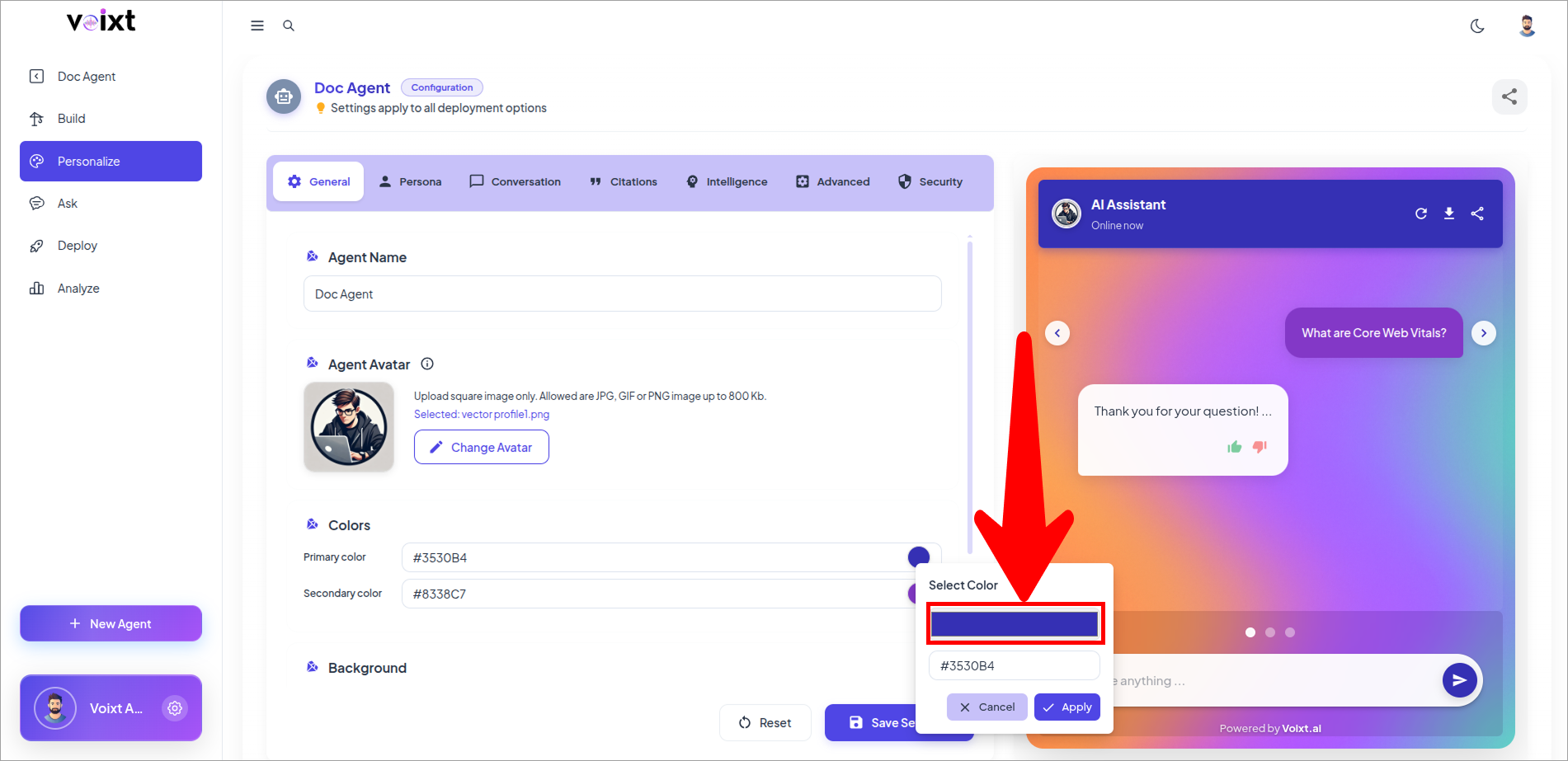
- Click to Select Specific Color or enter hex code and apply changes.
- You can see the changes in the right highlighted chat position
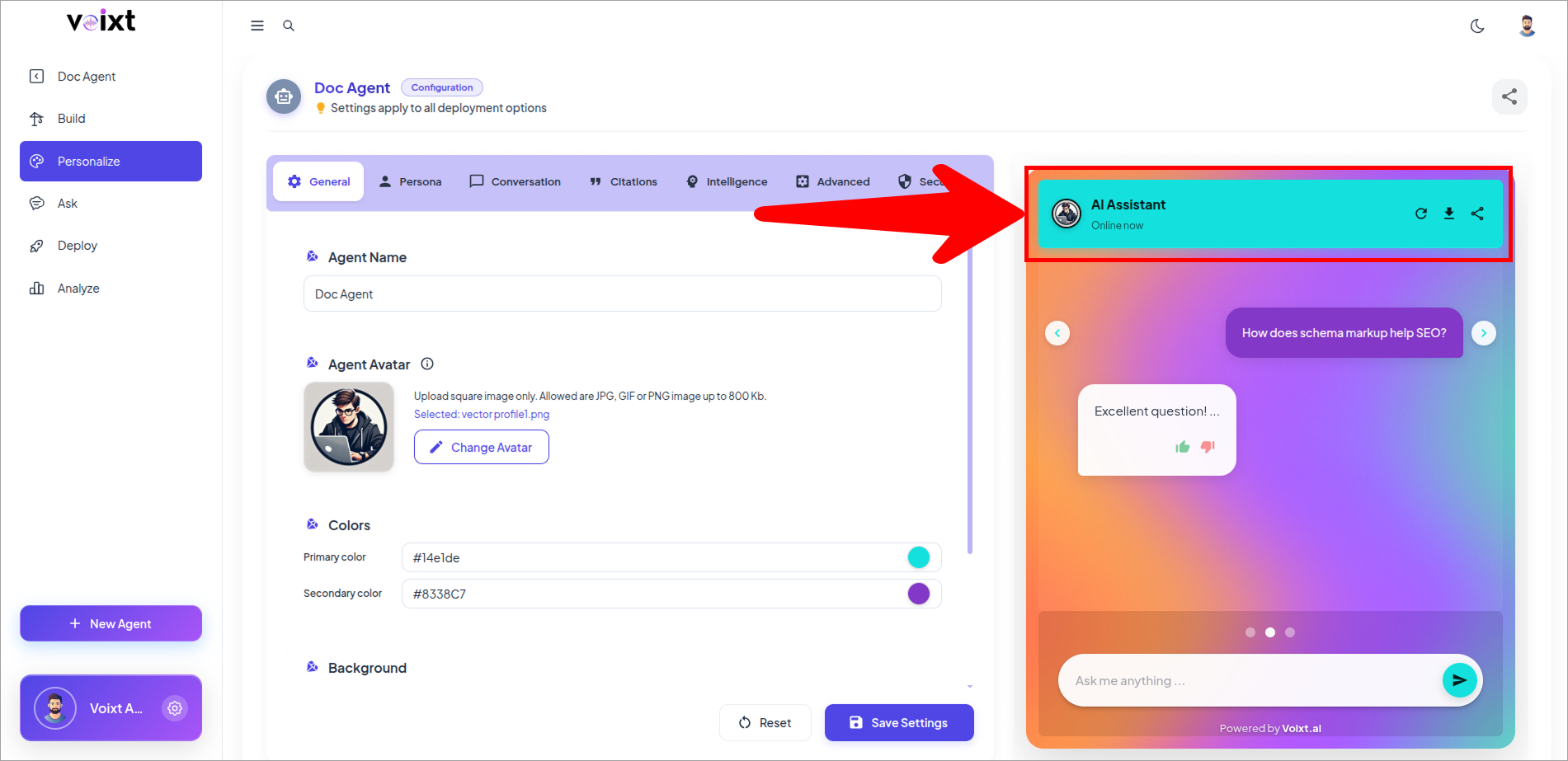
- Click on Save button to Save your Changes.