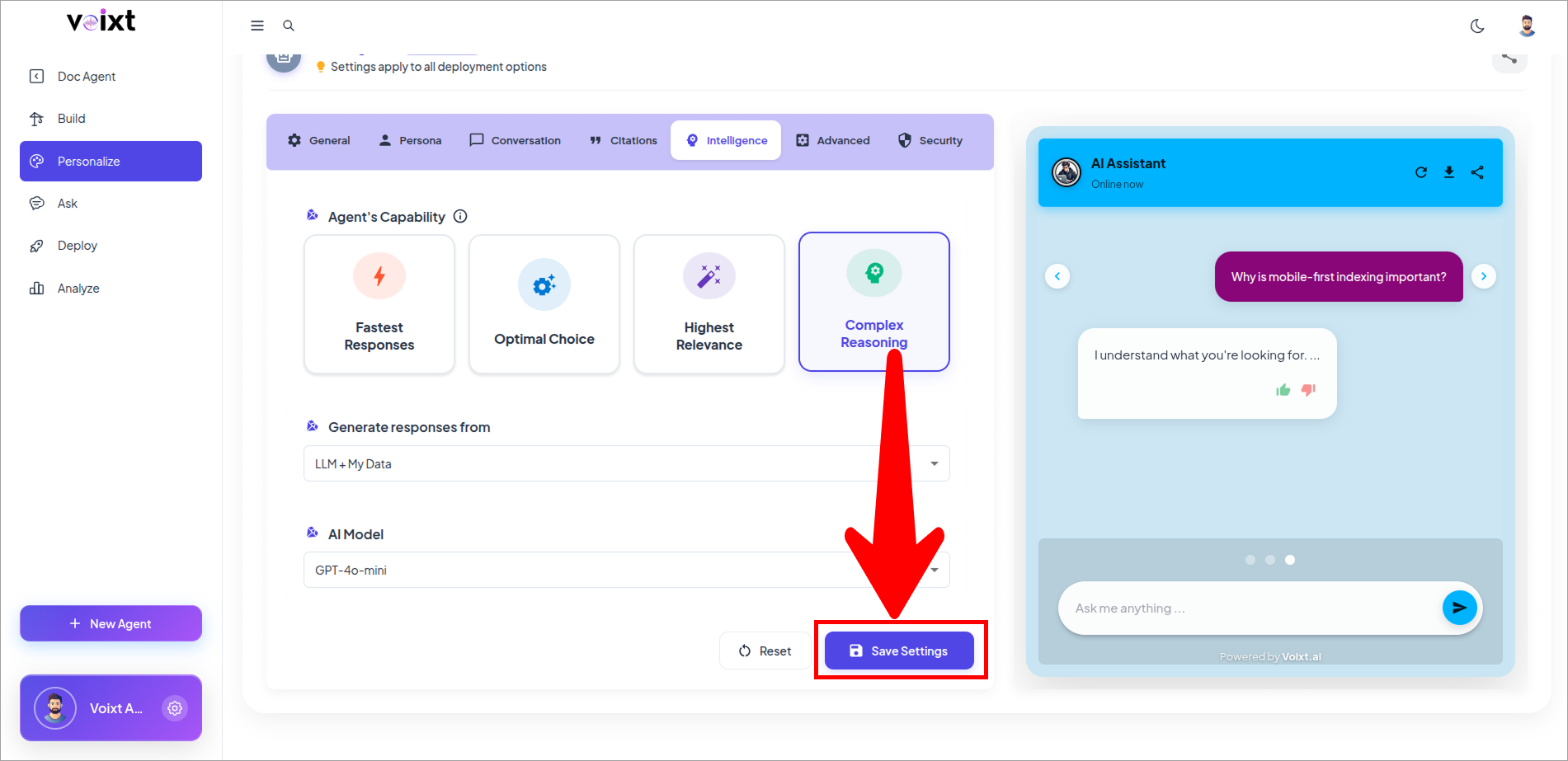
Configure Complex Reasoning
Follow this step-by-step guide to enable and optimize the complex tasks capability for your CustomGPT.ai agent.
What is complex reasoning?
Complex Reasoning enhances your AI agent’s ability to understand and respond to multi-layered queries by breaking them down into smaller components. This improves the depth, relevance, and accuracy of the responses—especially in content-rich environments.
How complex reasoning works:
- The agent breaks down user queries into five sub-queries, isolating key components to better understand the user's intent.
- A vector database is queried for each sub-query individually to retrieve the most relevant data.
- The retrieved contexts are merged into one, providing comprehensive insights.
- This process adds a slight latency of 1-2 seconds due to the enhanced processing.
When to use complex reasoning:
- Best suited for complex, multi-dimensional queries where advanced insights are required.
- Ideal for projects where the system needs to anticipate user needs and provide in-depth responses.
- Avoid enabling for simple queries, as it might add unnecessary latency without significant benefits.
Key benefits of complex reasoning:
- Enhanced Understanding: The agent can handle multi-dimensional queries by breaking them into smaller, manageable parts.
- Improved Response Quality: Merging results from sub-queries ensures the response is thorough and contextually relevant.
- Forward-Thinking AI: Anticipates user needs, delivering insights beyond the immediate query.
How to enable complex reasoning:
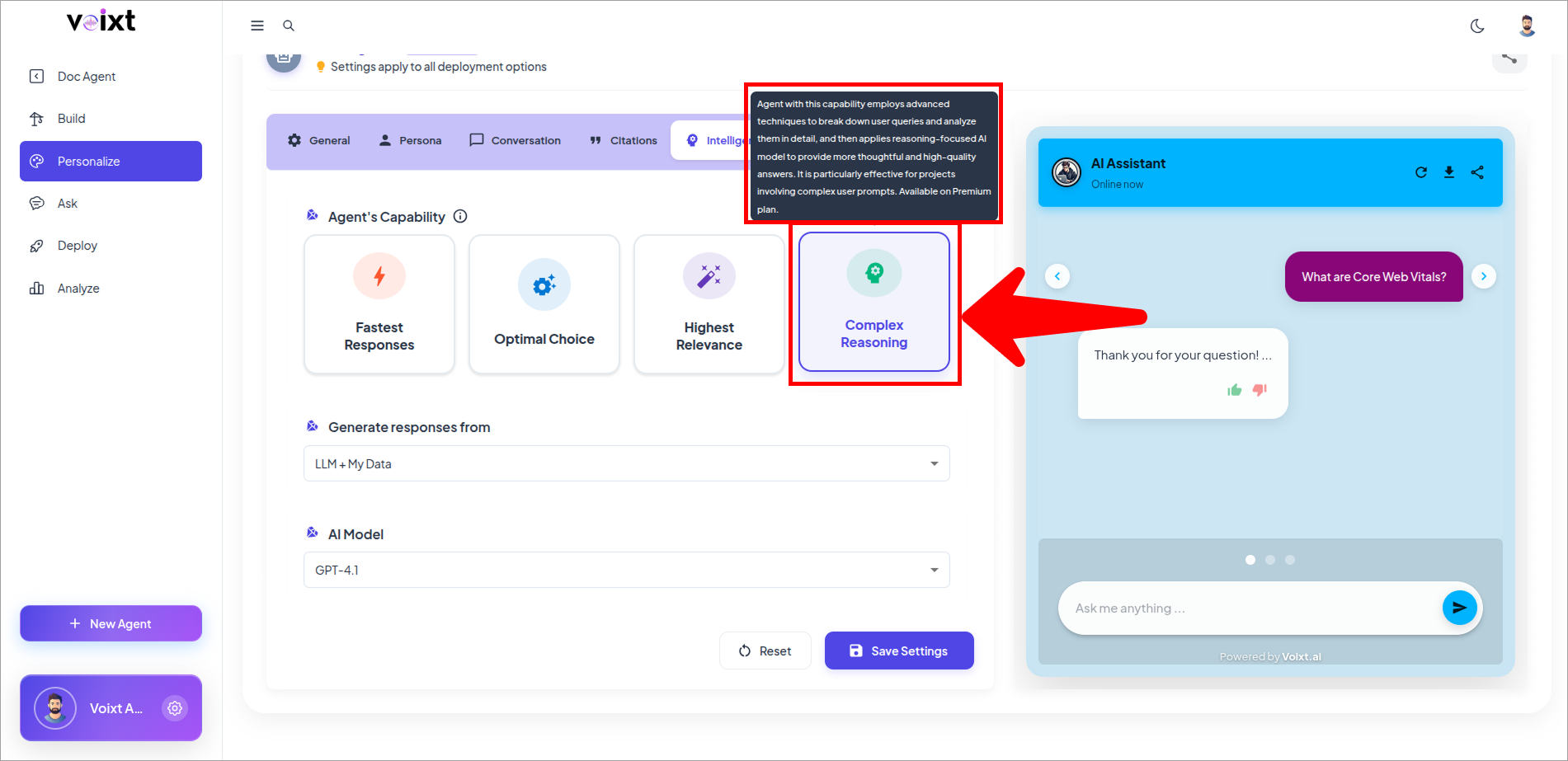
In the Agent's Personalization, Go to Intelligence tab.
- From Agent's Capabilities, Click on Complex Reasoning.
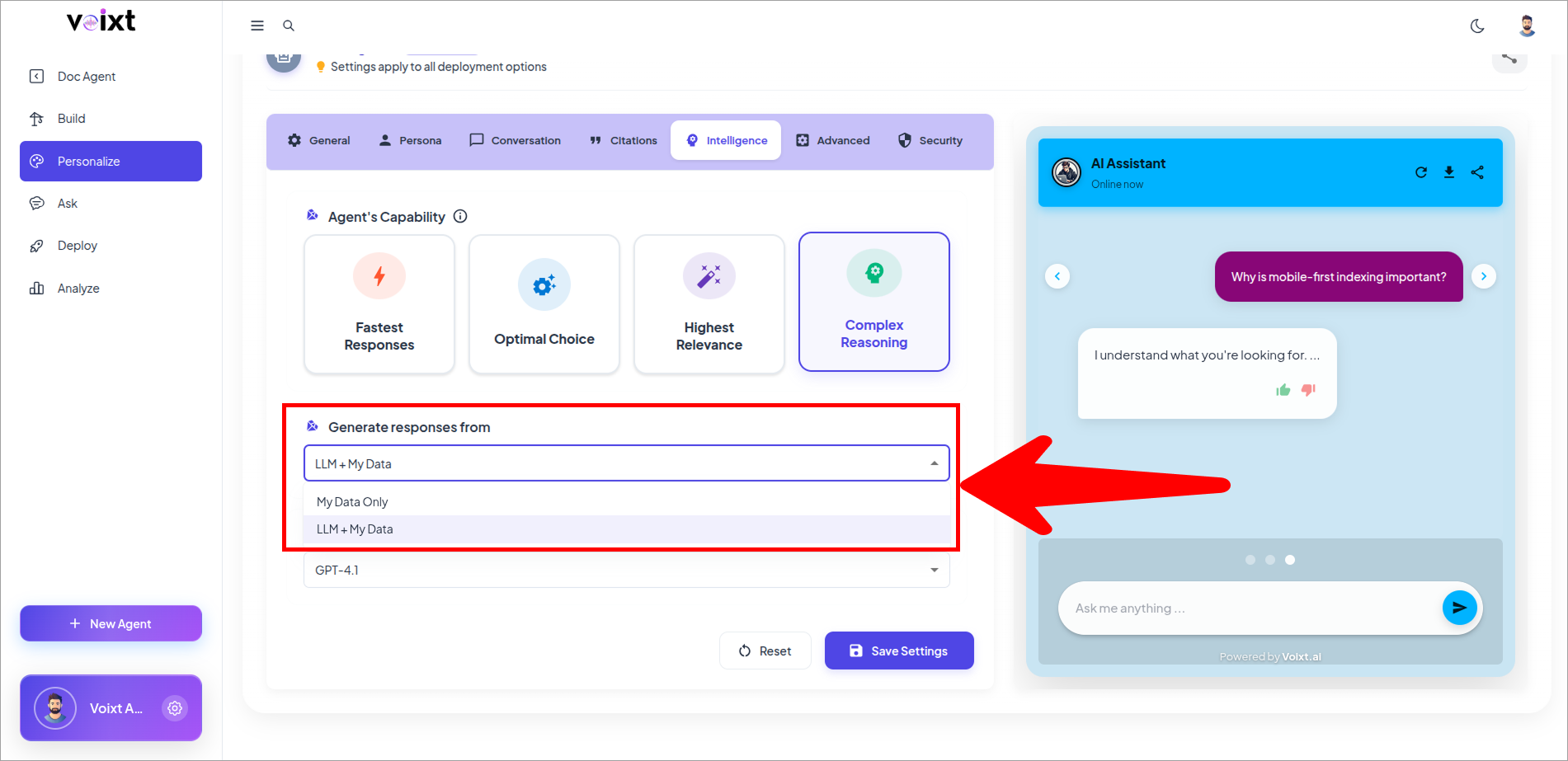
- Click on the dropdown to select the Generate Response From.
- To get Optimal Reasoning and Results use LLM + My data.
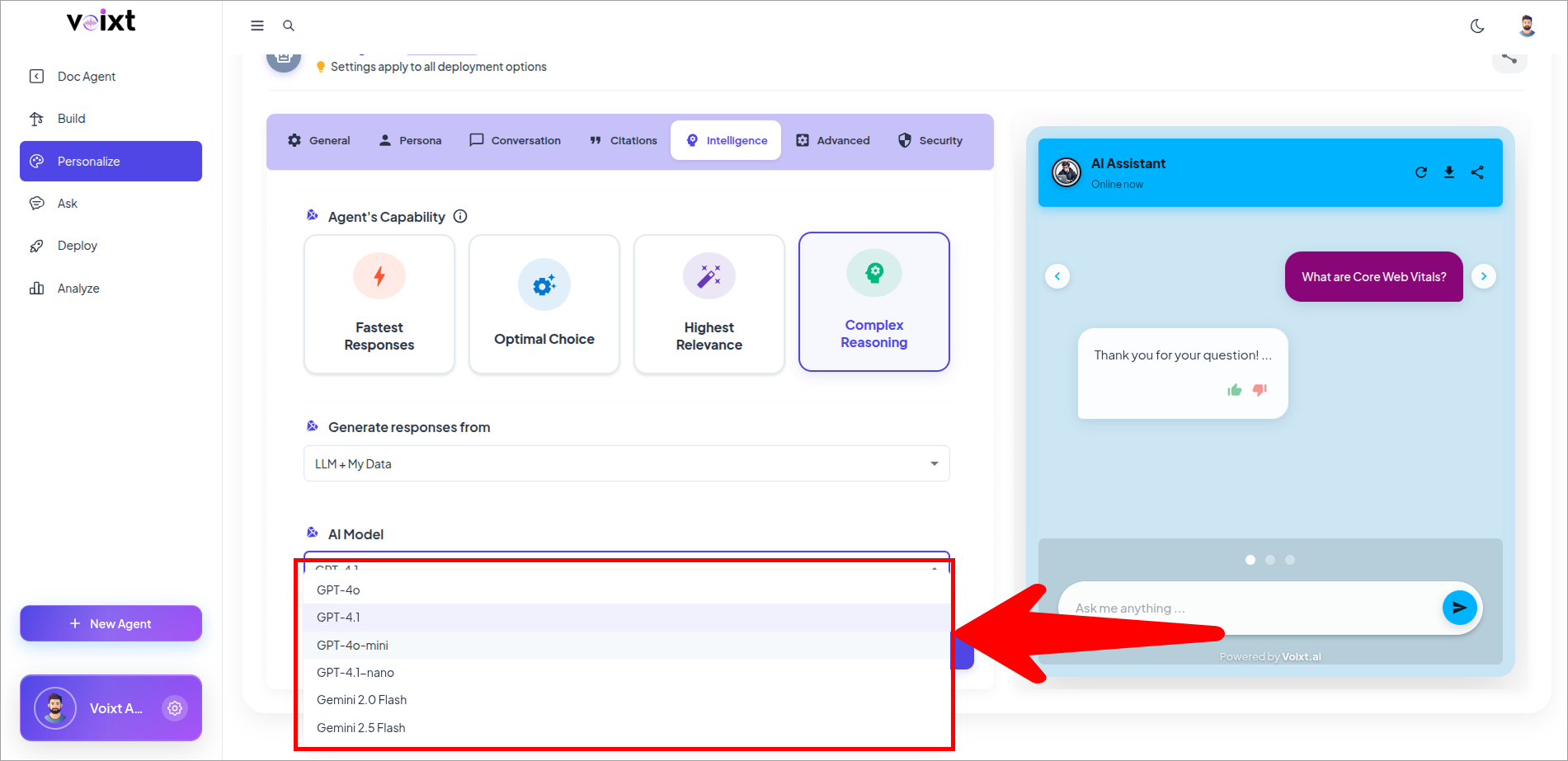
- Click on dropdown to choose the AI Model.
- Select GPT-4o-mini for advanced reasoning
- Click on save changes button to save the changes.